Connecting your Reverb marketplace seller account to eDesk will allow you to manage all of your Reverb marketplace messages and orders from your eDesk.
All messages from your customers will continue to be delivered to your Reverb marketplace account, which will also include the messages that you send your customers from eDesk.
This helpfile will walk you through how to connect your Reverb marketplace seller account with eDesk.
Before you start
- You’ll need an Admin login to eDesk. If you don’t have an Admin login, you can request one from an Admin user within your business.
- You'll need a Reverb marketplace seller account. To find out how to create one, see here.
01 How do I connect my Reverb seller account to eDesk?
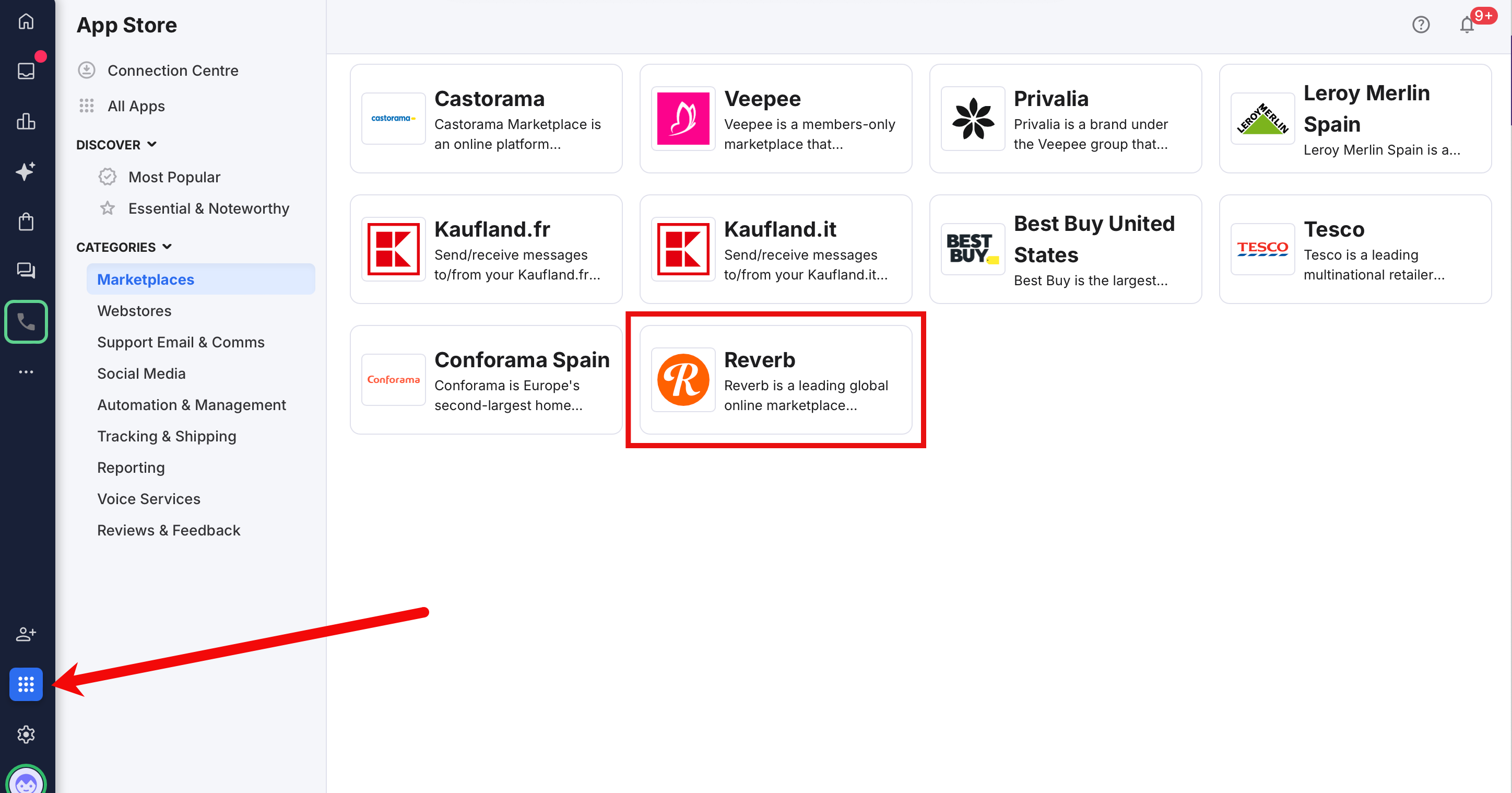
- Go to the App Store and select the Reverb tile.
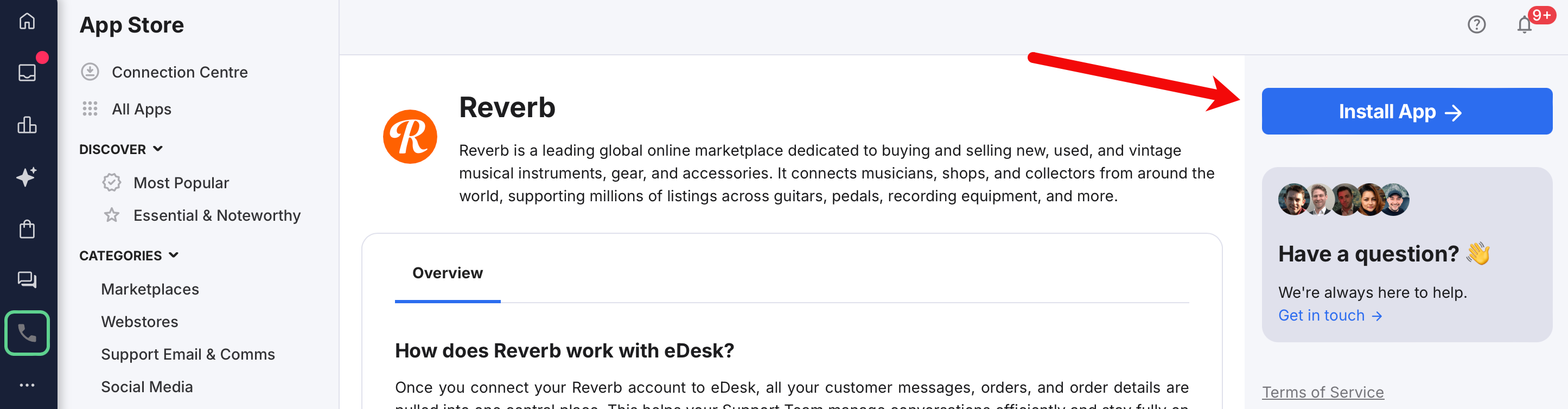
- This opens the Overview tab in the Reverb page in the eDesk App Store. This tab explains what happens when you use this app to connect eDesk and your Reverb marketplace seller account.
Select Install App to go ahead and install the app that will connect your Reverb marketplace seller account with your eDesk.
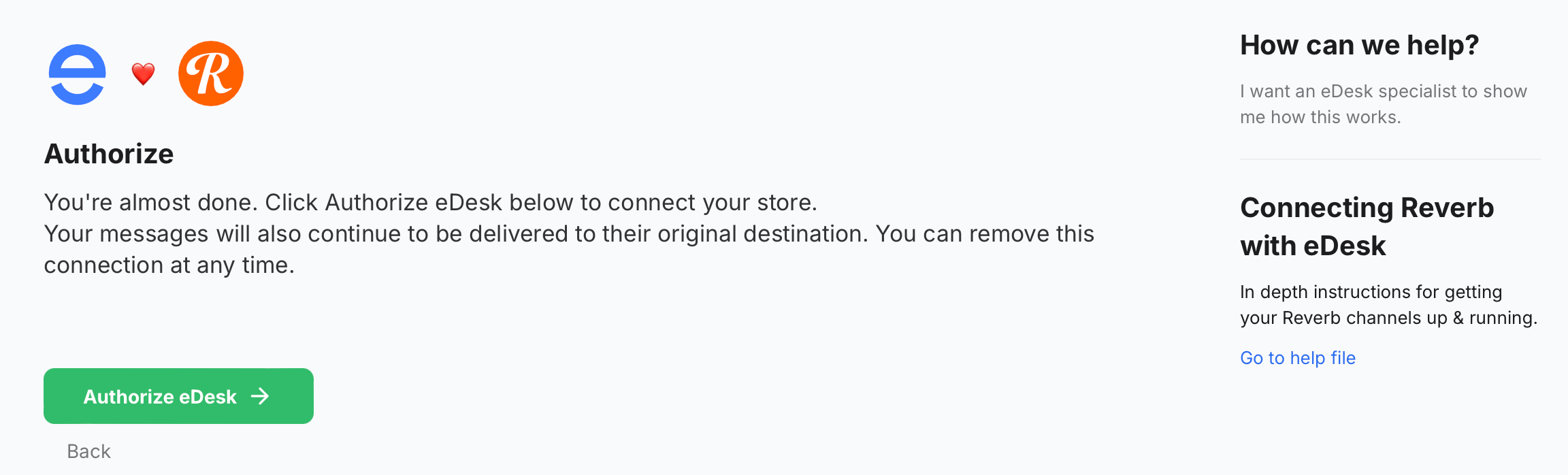
- Select Authorize eDesk.
- The Connect your Reverb store page is displayed.
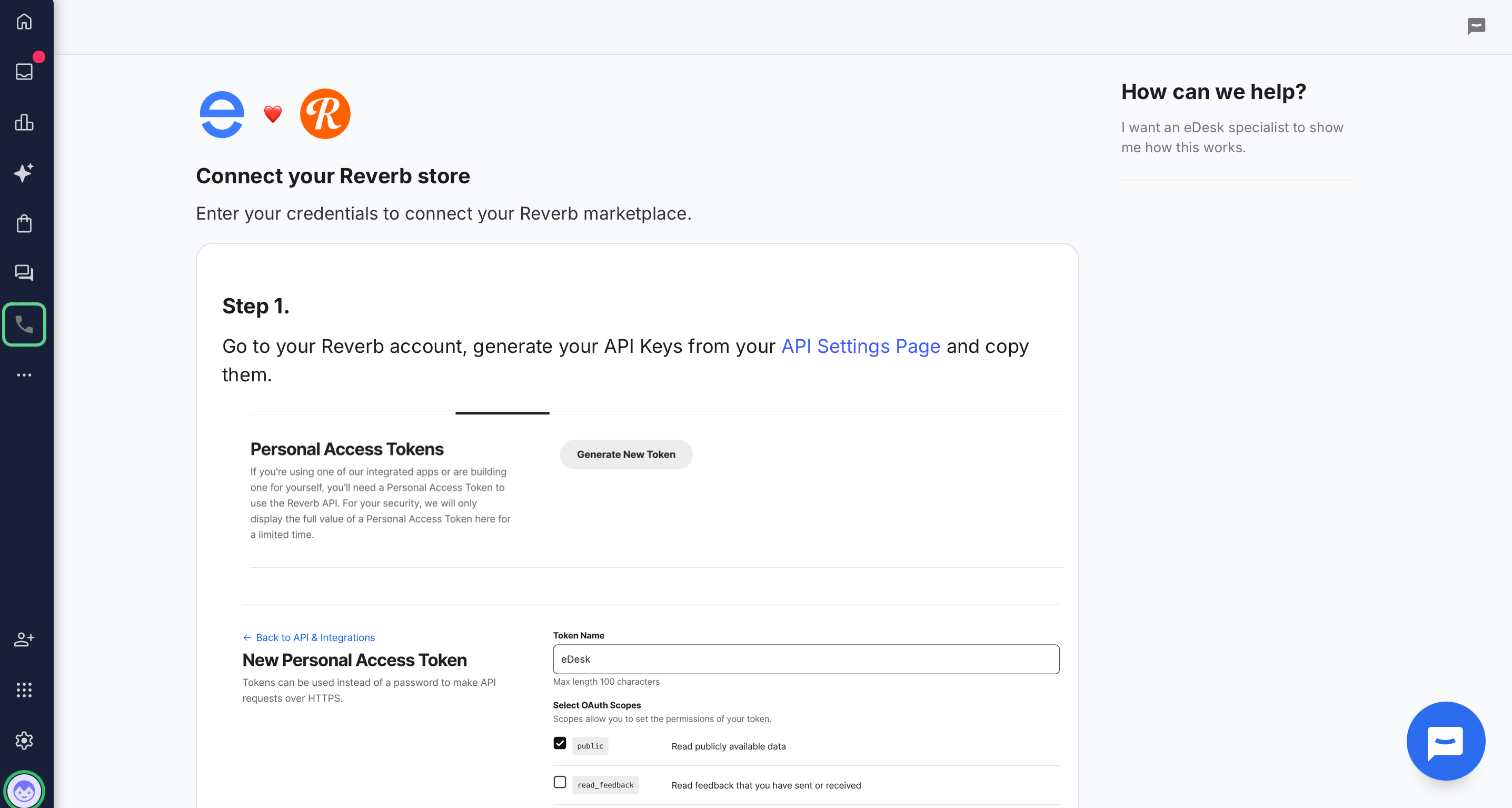
- Now, follow the instructions on screen. These will be:
Step 1: Generate a Personal Access Token in Reverb
Keep eDesk open in your current browser tab; we'll return to this after you've generated the necessary token in Reverb.
In a new browser tab, login to Reverb with your seller account.
Then:- Navigate to API & Integrations → API Settings
- Create a new Personal Access Token.
- Copy the Personal Access Token to your clipboard.
Reverb only displays the full token once so make sure you've copied it!
Step 2: Paste the Token into eDesk
Now, return to the browser tab that displays the Connect your Reverb store eDesk page.- Paste the Personal Access Token into the Token field.
- Give the token a name (e.g. “eDesk”)
- Select the following checkboxes (important):
- public
Allows your eDesk account to read publicly available data. - read_messages
Allows your eDesk account to retrieve customer messages. - write_messages
Allows your eDesk account to send replies to your customers from, your Reverb seller account. - read_orders
Allows your eDesk account to read order data. - write_orders
Allows your eDesk account to update order status in your Reverb seller account
- public
- Select Next / Authorize
Step 5: Authorization Complete
Congratulations, you've now connected your eDesk with your Reverb marketplace seller account.
Your Reverb orders and customer messages will begin syncing automatically and appear in your eDesk. You will also be able to see the same orders, customer messages, and the replies you send from eDesk in your Reverb account.
02 Where do I see orders and messages from my Reverb customers in eDesk?
Now that you've connected your Reverb marketplace seller account to eDesk, you can receive and send customer messages, view orders, and manage all of your customer care in one convenient place - eDesk!
- You will be able to see all your buyer conversations in dedicated tickets in the Mailbox.
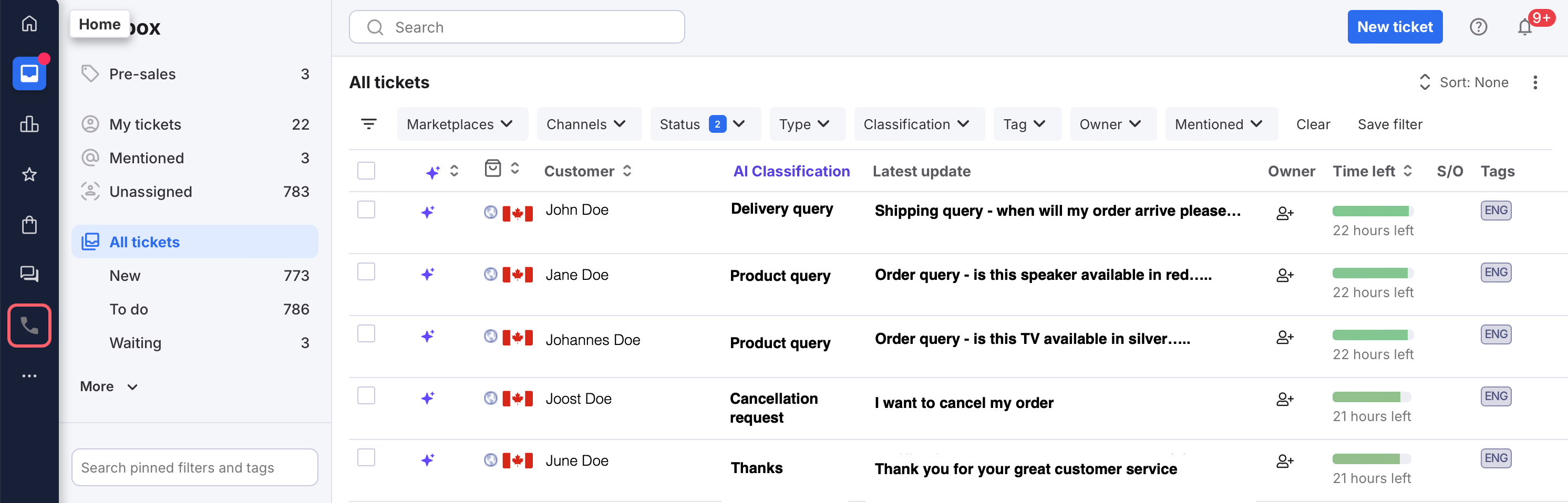
- If the ticket involves an order, you'll see the order information on the right-hand side of every ticket.
See this helpfile for an overview of everything you will see in the ticket view, including order information. - And you also will be able to inspect all of the orders you've received through Reverb marketplace in the Orders screen in eDesk.
03 New to eDesk?
Read our Getting Started guides.Further Reading
To learn how to connect Amazon with eDesk, see here.
To learn how to connect eBay with eDesk, see here.