Connecting your Trustpilot account to eDesk will allow customer's positive and negative reviews from Trustpilot to flow directly into eDesk, where you can view and reply to them.
Trustpilot will continue to show all customer reviews, ratings, and the replies that your team sends from eDesk.
This help file explains how to connect Trustpilot and eDesk, and what you'll see in eDesk when your business receives a Trustpilot review.
Before you start
- You’ll need an Admin login to eDesk. If you don’t have an Admin login, you can request one from an Admin user within your business.
- You'll need a Trustpilot Business account to respond to reviews from eDesk. To find out more about this, click here.
01 Trustpilot and eDesk
Connecting your Trustpilot account to eDesk will allow customer's positive and negative reviews to flow directly into eDesk, where you can view and reply to them. You can automatically resolve 4/5 star reviews to keep your Mailbox tidy.
Additionally, if you have eDesk Feedback, which is an add-on, you'll be able to request customer reviews in Trustpilot. Learn all about Trustpilot and eDesk Feedback here.
02 How do I connect Trustpilot and eDesk?
- In eDesk, go to the App Store and select the Trustpilot tile.
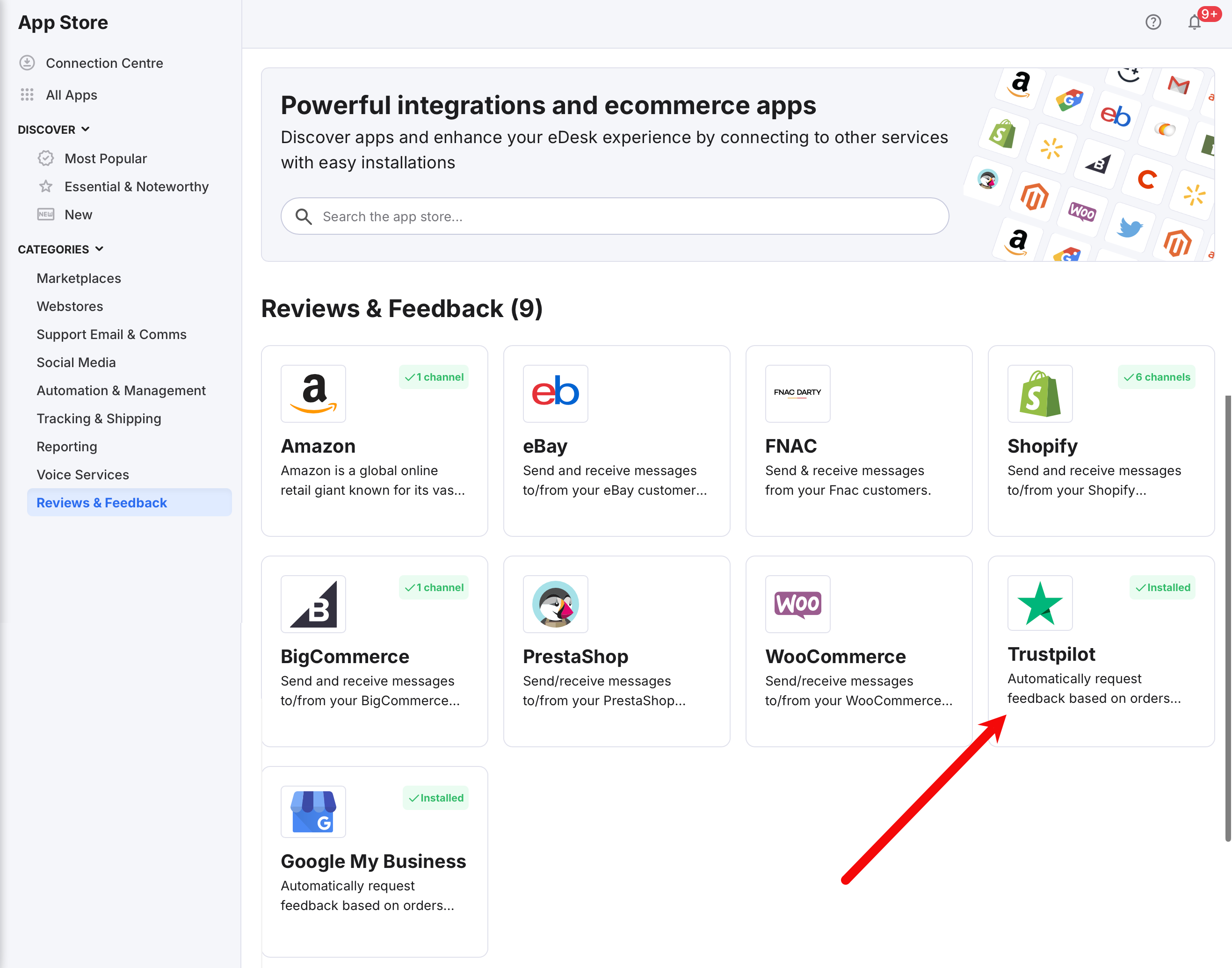
- The App page for Trustpilot provides an Overview of how the channel works with eDesk. Select Install App to go ahead and install a Trustpilot Business Account.
- Select Authorize eDesk.
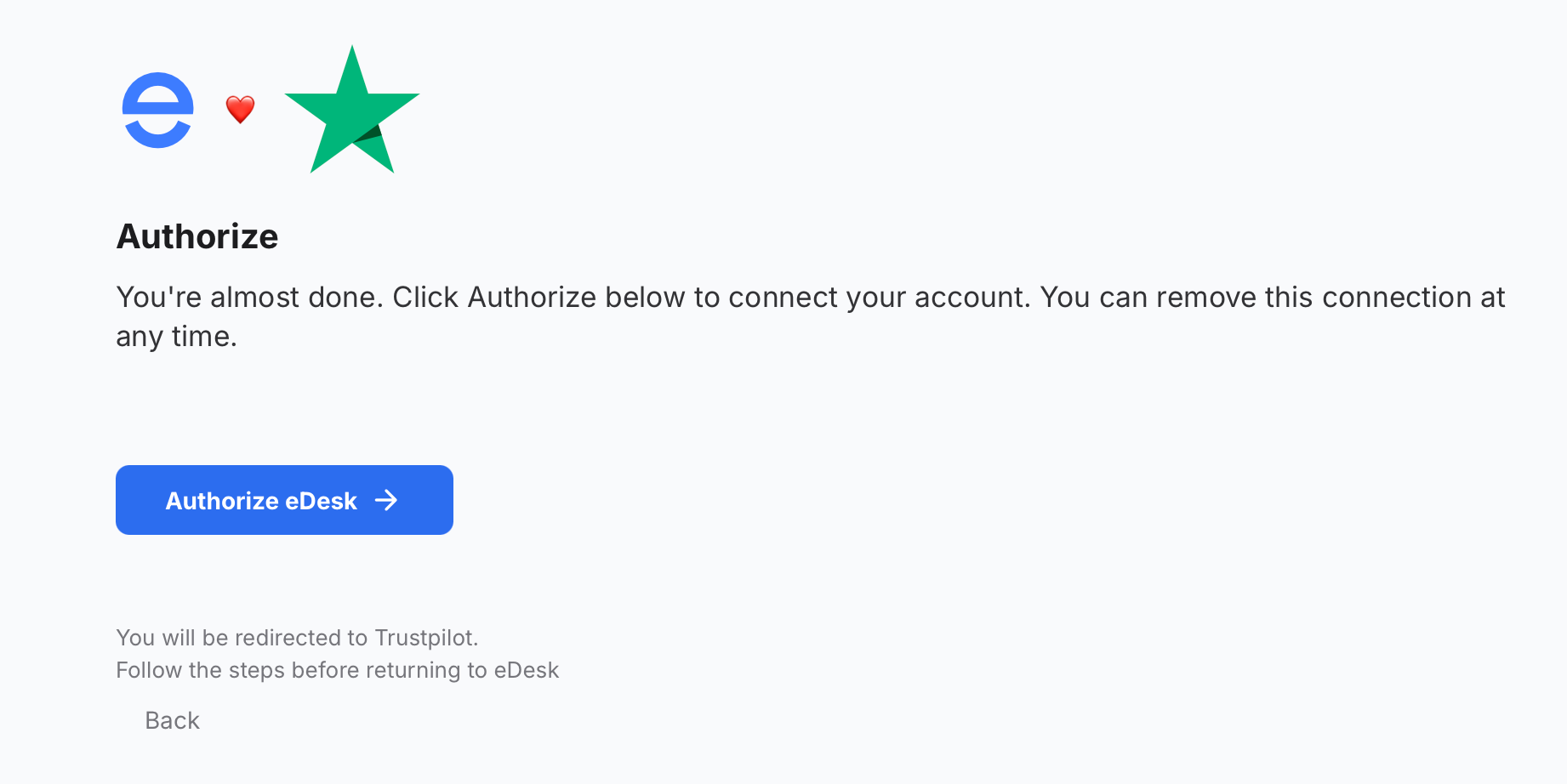
- The Trustpilot Business website opens. Log into your Trustpilot Business account.
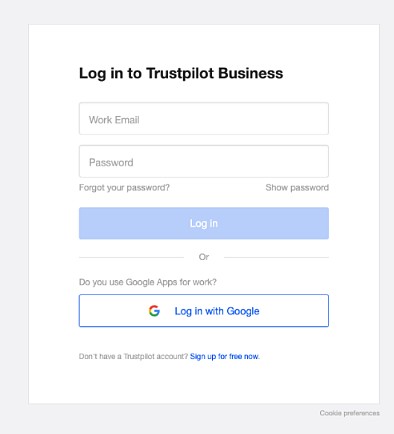
- Copy the domain name of your Trustpilot account.
- Return to eDesk, and paste in the domain name of your Trustpilot account into the Domain name field.
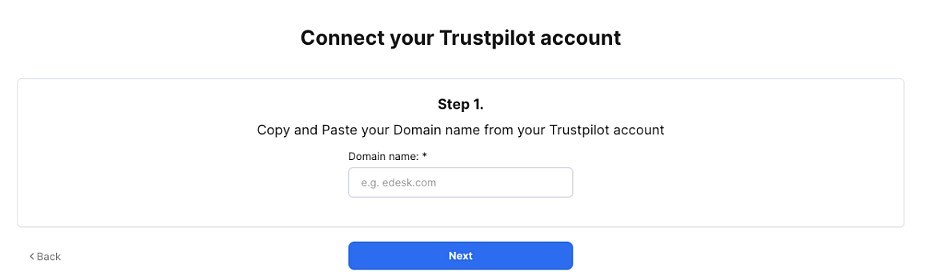
- Select Next.
03 What Trustpilot information will I see in eDesk?
Now that your Trustpilot Business account is connected to eDesk, whenever a customer leaves a review for your Trustpilot Business account, your team will see a new ticket in the Mailbox, which contains details of the review: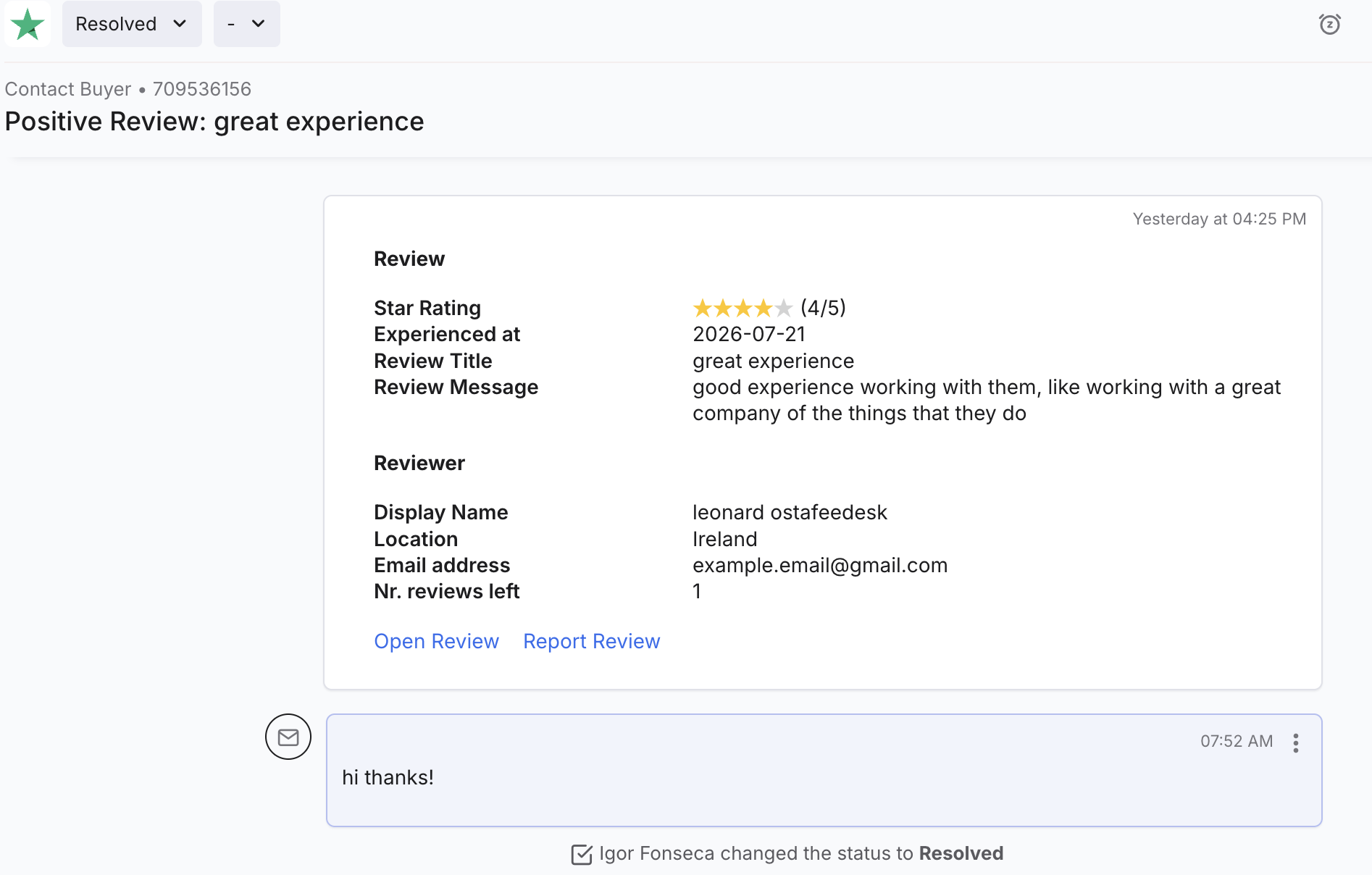
Your support team can reply to reviews, keeping conversations organised, traceable, and part of your unified workflow.
If you have eDesk Feedback, you will be able to send feedback requests to your customers, which they'll provide via Trustpilot. Learn more here.
04 Auto-close tickets for positive review
If you only really want to see tickets with less positive ratings in your Mailbox, you can instruct eDesk to auto-close any tickets for positive reviews (rated 4 star and higher), so that your Mailbox is kept tidy and you can focus on reviews with a lower rating. The positive tickets will continue to be available in the Resolved section of the Mailbox so that you can review them.To auto-close positive reviews:
1. Go to Settings > Mailbox > Channels and select the Trustpilot channel from the list.
2. Select the Trustpilot Settings tab.
3. Tick the Auto-close positive reviews checkbox:
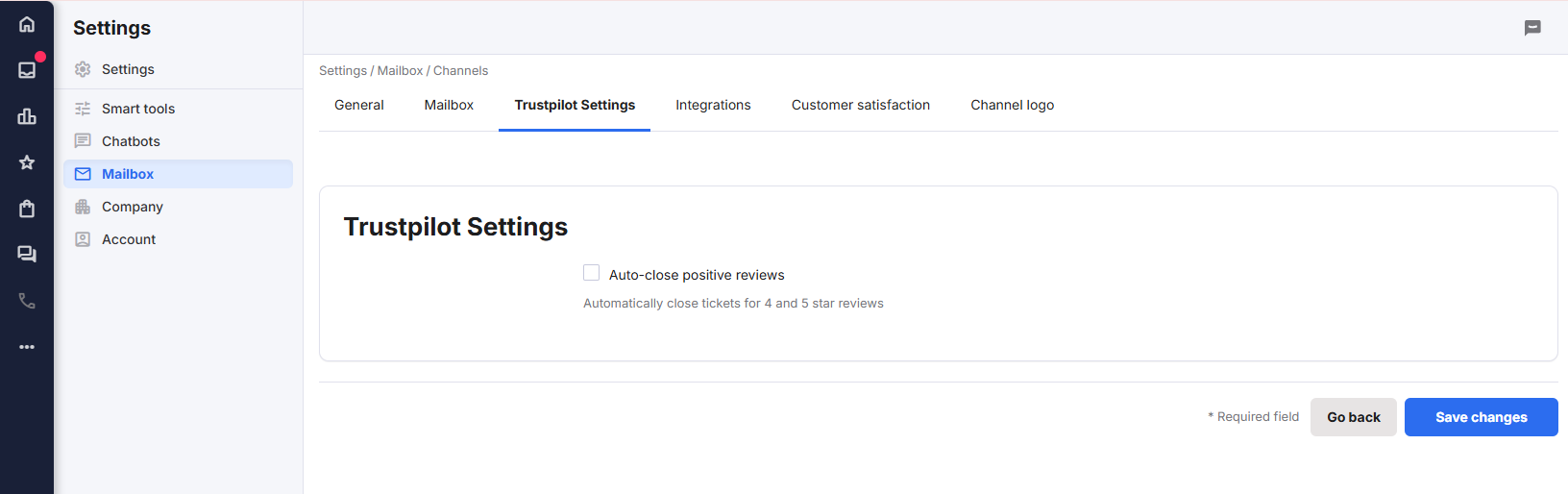
4. Save your changes.
Tickets for positive Trustpilot reviews will now be routed straight to the Resolved section of your Mailbox.
Further Reading
If you want to learn more about requesting reviews on Google, click here.Interested in learning more about the Amazon Request a Review feature? Click here.