Before you start
- You’ll need an Admin login to eDesk. If you don’t have an Admin login, you can request one from an Admin user within your business.
- You'll need an Easyship account. To create one, see here.
01 How do I connect Easyship in eDesk?
To pull information from Easyship, you need to create an Easyship 'API token'. Follow the instructions below:
- Log in to Easyship.
- Go to API & Webhooks.
- In the APIs tab, select Create API Connection.
- In the Add new API Connection window, enter a name for the connection (e.g. "eDesk") and hit Connect.
- Scroll down to the Access Token section and select the arrow to view the new API token.
- Select the Copy icon to copy the generated token. You'll paste it into a screen in eDesk when following the instructions in the next section of this help file.
02 Adding the API token to eDesk
Now you'll need to paste the Easyship API token into eDesk.
- In eDesk, go to the App Store and select the Easyship tile.
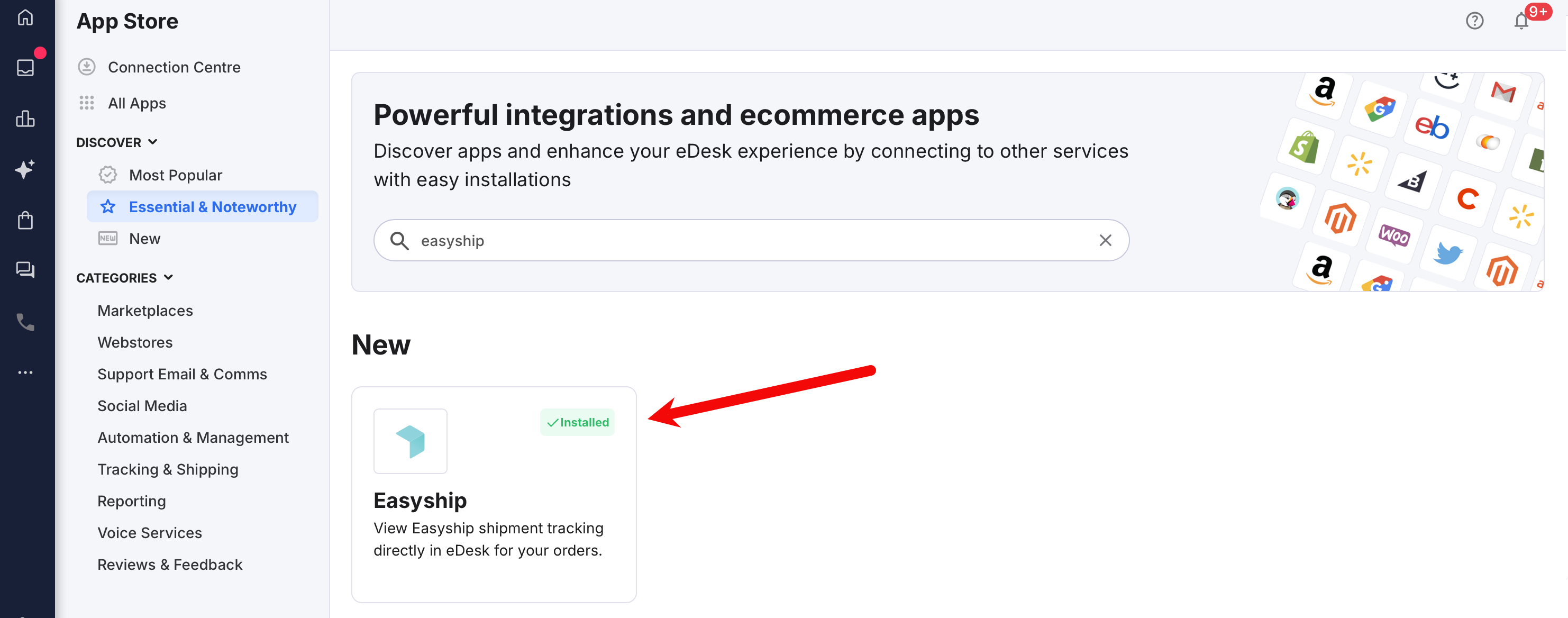
- The App Store page for Easyship provides an Overview of how the channel works with eDesk, and an Installed Channels tab will also be shown if you already have apps for Easyship accounts installed. Select Install App to go ahead and install a new Easyship account connection.

- The Integrations page in Mailbox Settings is opened showing the Easyship tab.
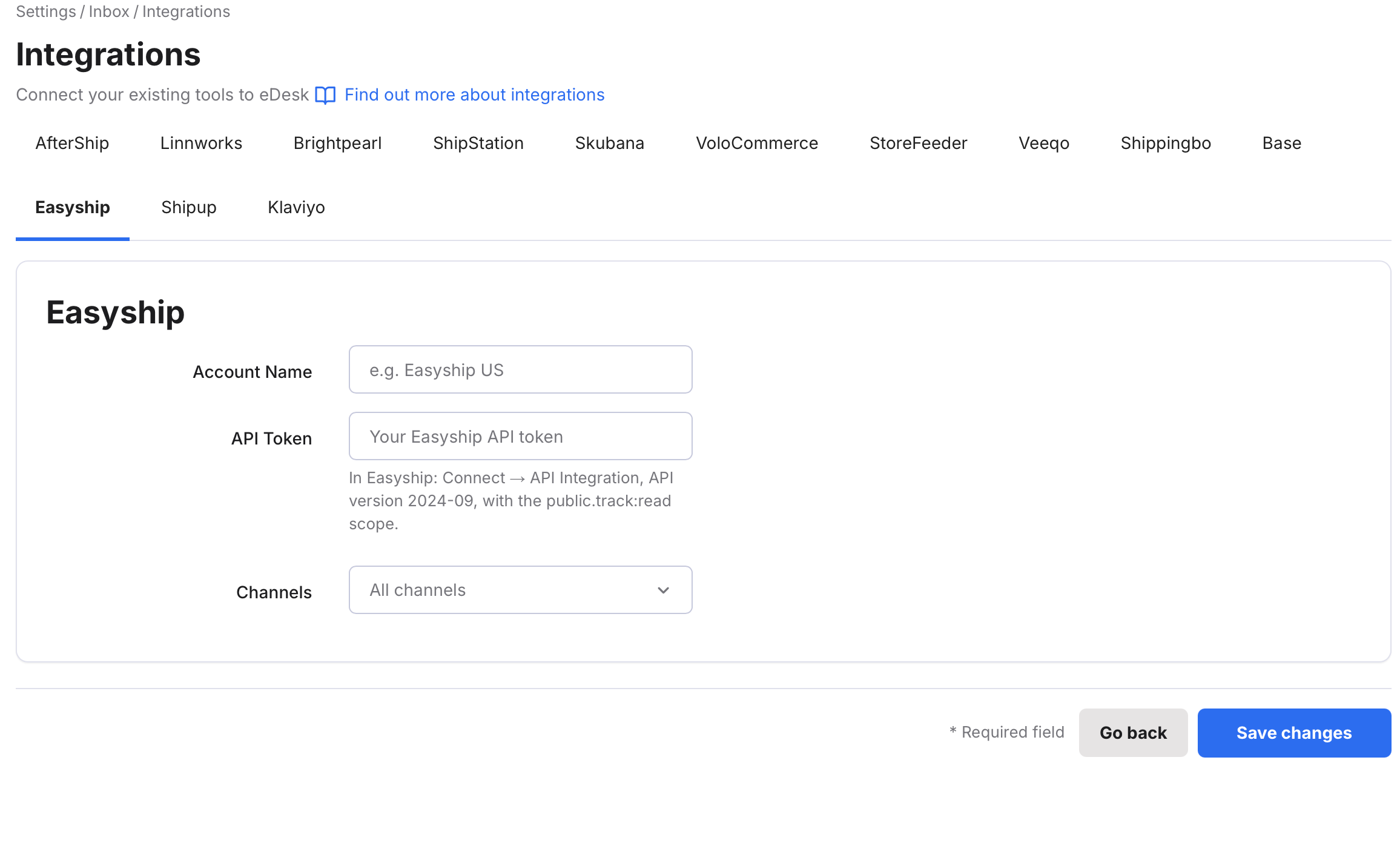
- Enter a name (E.g., Easyship US) into the Account Name Field.
- Paste your Easyship API Token into the API Token field.
- In the Channels field, choose the channels that you want to enable this connection for. Default is All Channels.
- Select Save changes.
Congratulations, you have now connected Easyship with eDesk.
03 Where do I see data from Easyship in eDesk?
Now that you've successfully connected your Easyship account, we'll import tracking data directly into your eDesk account.- You'll see the Easyship tracking data on the right-hand side of every ticket.
If there's no tracking URL displayed, click the button to refresh the tracking URL from Easyship and store it permanently in the ticket. - You'll see the tracking information in every order too.
Further Reading
To learn how to connect AfterShip with eDesk, see here.
To learn how to connect Base.com with eDesk, see here.