This help file explains how to close Knowledge gaps that eDesk has flagged as being missing from your Training content.
Before you start
- You'll need an Admin or Team lead account or access Agents and the Knowledge gaps permission
- AI Agent is charged per resolution, see here for information on pricing
01 Knowledge gaps explained
Your AI Agent uses the Training Content you've provided to generate replies for your customer queries.If a human agent reviews the AI Agent's reply before it's sent and believes it to be inaccurate or lacking information - or if a human agent sends a follow up reply with more accurate information - then eDesk compares both replies and identifies the differences as Knowledge gaps in the Training content.
eDesk will identify Knowledge gaps in the following:
- Previews that were not used by the human agent.
- Drafts that were not used by the human agent.
- Auto replies that a human agent has cancelled before they are sent or sent a follow up message after the auto reply.
02 Closing Knowledge gaps
eDesk logs the gaps on the Knowledge gaps page, which you can review to find out what needs to be improved in the Training Content. You can then close the Knowledge gaps by adding the missing information or correcting any content that's wrong. There are two ways to do this:A) Missing content or corrections: create new content to close the Knowledge gap
Open the Training Content and either manually insert/correct the information or correct it at the source and refresh the associated library. Instructions are here.
B) Missing content only: Ask eDesk's AI to generate new content to close the Knowledge gap
If the Knowledge gap has been identified because of missing information in the Training Content, you can instruct eDesk to generate new content to address the Knowledge Gap, with just a couple of clicks. eDesk's AI will create the content based on contextual information in the real ticket history. All you have to do is review the new content and edit it if needed.
B) Out-of-date information in content that was previously generated by eDesk's AI: Ask eDesk to update previously generated content to close a Knowledge gap
If the Knowledge gap has been identified because information in an article that was previously generated by eDesk's AI is now out of date or needs more details, you can instruct eDesk to update the content to address the Knowledge Gap. eDesk will update the content based on contextual information in the real ticket history. All you have to do is review the updates and edit it if needed.
Example: eDesk AI finds a gap that's related to collection arrangement. In the Training Content, there's an existing article that provides information on collections that was generated previously by eDesk's AI, but the company has since introduced a new procedure that provides a QR code for collection. eDesk will now update this existing article with the new information about QR codes.
Note: As a safeguard, eDesk will not update content in articles that it did not previously generate - if eDesk's AI didn't create the article, then you must update it manually.
03 How does the AI close Knowledge gaps?
When you instruct eDesk AI to close a Knowledge gap, the AI generates content based on the tickets that are linked to the gap. Specifically, it scans through the conversations in the tickets, learning as it progresses, and then generates detailed content based on:
-
the questions the customers asked.
-
the information that the Agents provided in their replies.
-
repeated patterns and common resolutions.
Important note: The AI will create a new article - or update an existing article that it previously created. It's essential that you, i.e., a human, reviews the AI's changes as part of the process described in the next section of this help file.
eDesk's ability to intelligently generate content to close Knowledge gap is a great time-saver, and is especially useful when:
- the same question appears repeatedly in Training gaps.
- Agents consistently provide the same explanation manually.
- The Training Content is missing clear documentation for a given scenario.
It is not a replacement for thoughtful Training Content management, but a powerful accelerator when used correctly.
04 Sounds great! How do I ask eDesk AI to close Knowledge gaps?
To close a Knowledge gap that flags missing information in your Training content:- Go to the AI section > Knowledge gaps
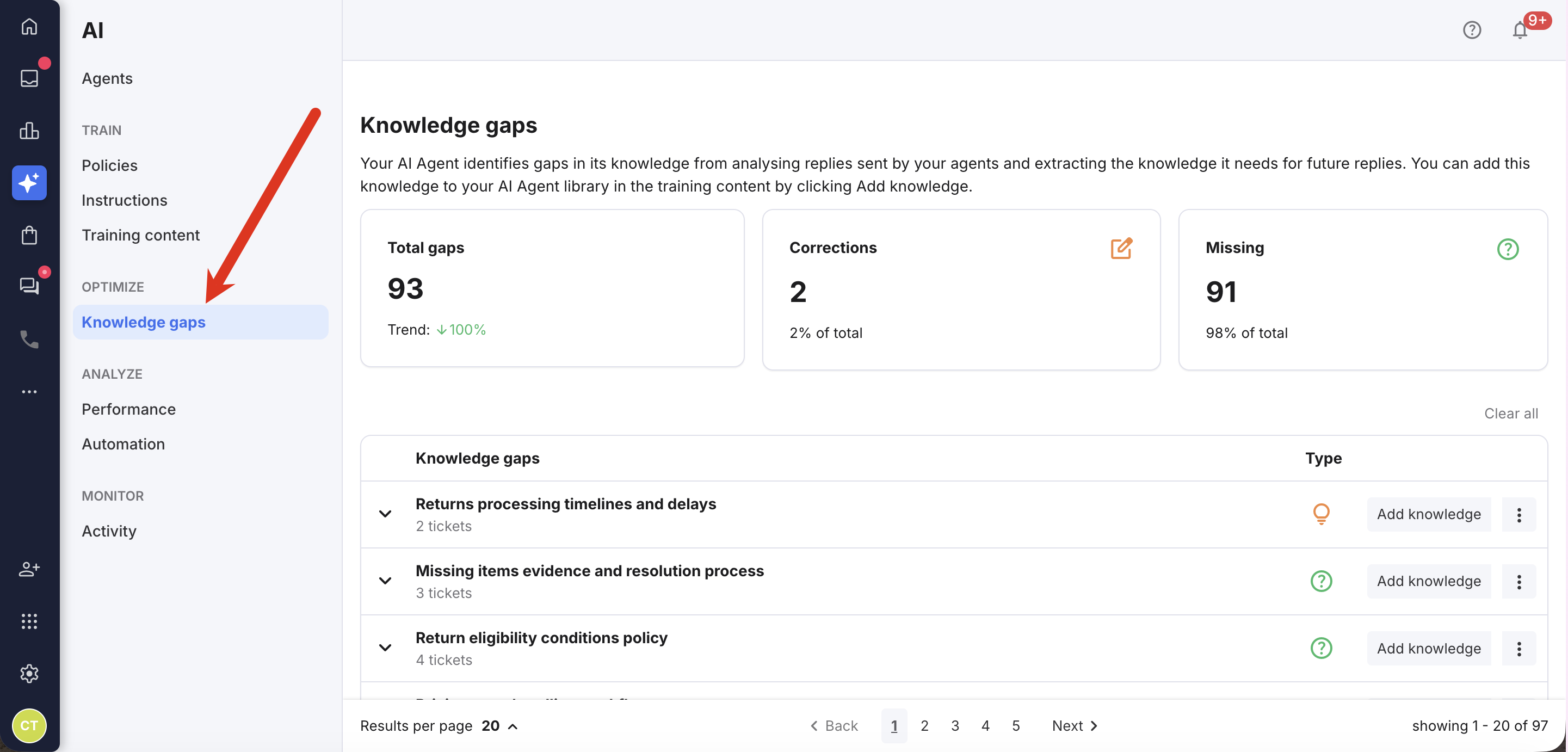
The Knowledge gaps page displays a list of Knowledge gaps that is updated in real-time whenever a gap is identified in the AI Agent's messages to customers.
The top row is a summary that includes:- Total gaps
Total number of gaps that were identified. - Number of Corrections
A Correction is where some information in the human agent's reply differs from the information in the AI Agent's reply, raising the possibility that the AI Agent's information is wrong. For example, the Training content stated that the return processing fee was $5, but the human agent said $6 in their reply. - Number of Missing
Missing is where the human agent's reply contains information that is not in the AI Agent's reply, suggesting that the AI Agent does not have access to that information in its Training content, Instructions, or Policies.
The table below it lists the Knowledge gaps, with the following columns:- Knowledge gaps
A list of topics in which gaps have been identified. These topics are generated by the AI based on the customer's messages in tickets. An example of a topic is Shipping delivery timing and special requirements. For each topic, it also shows the number of tickets the AI Agent generated a reply that contained gaps. A maximum of 100 topics will shown at any one time. - Type
The type of gap (Correction or Missing). - Add Knowledge button
Select this to instruct eDesk AI to close the gap. Full details are below. - Total
The number of gaps identified.
Select a row in the table to expand the view.
This lists the tickets in which an AI Agent generated a reply that contained a gap relating to the topic:
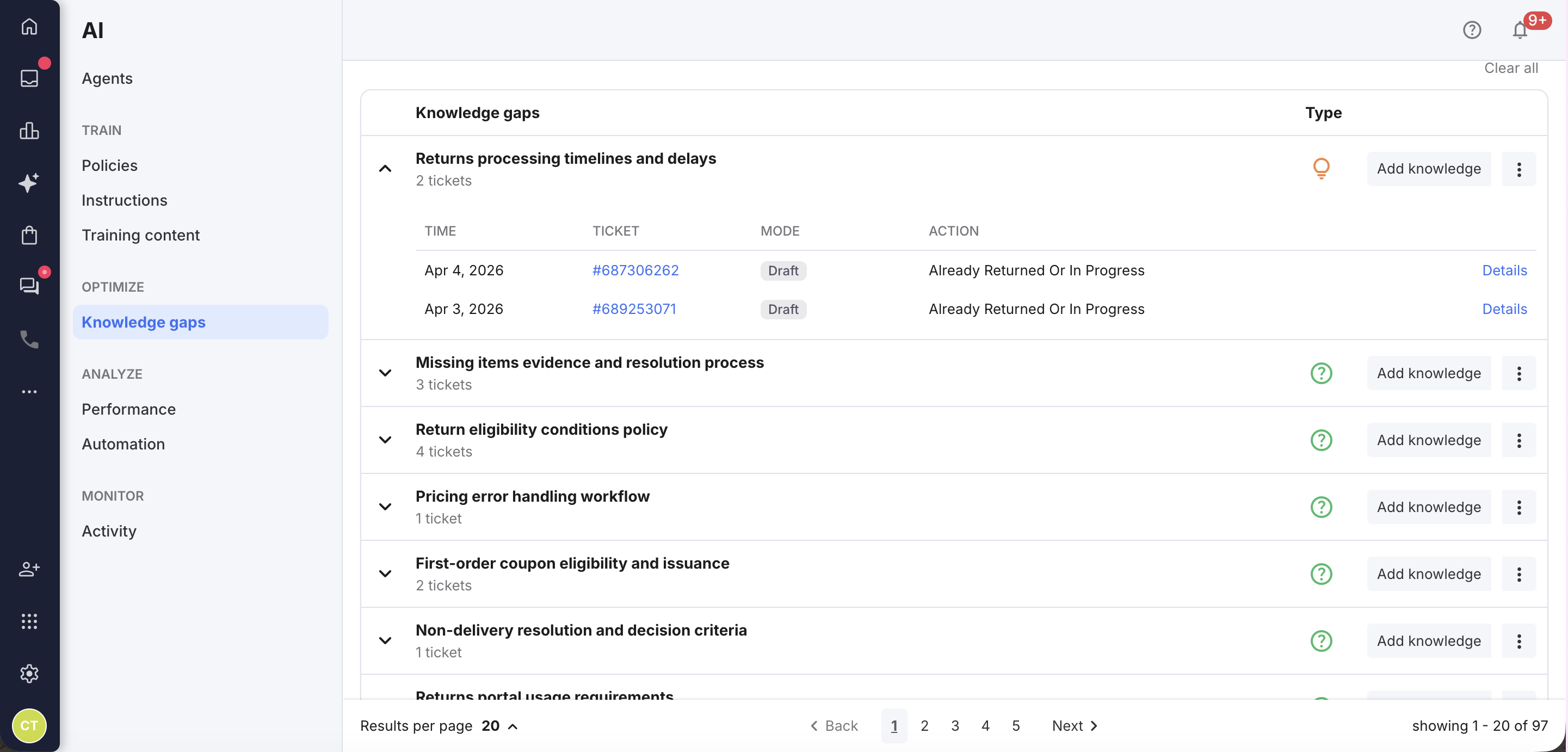
For each ticket in the topic, the following columns are displayed:- Time
- Ticket
Ticket ID that links to the ticket in the Mailbox. - Mode
Draft, Preview or Auto reply - Action
- Details
Select the Details button to open the Reply analysis. The Reply analysis shows the human agent's reply and the AI Agent's generated reply, and highlights the differences between the two, as well as providing other details.
- Total gaps
- To ask eDesk to generate content to close a Knowledge gap, select Add Knowledge in the row for that gap.
An Add knowledge modal window is opened:
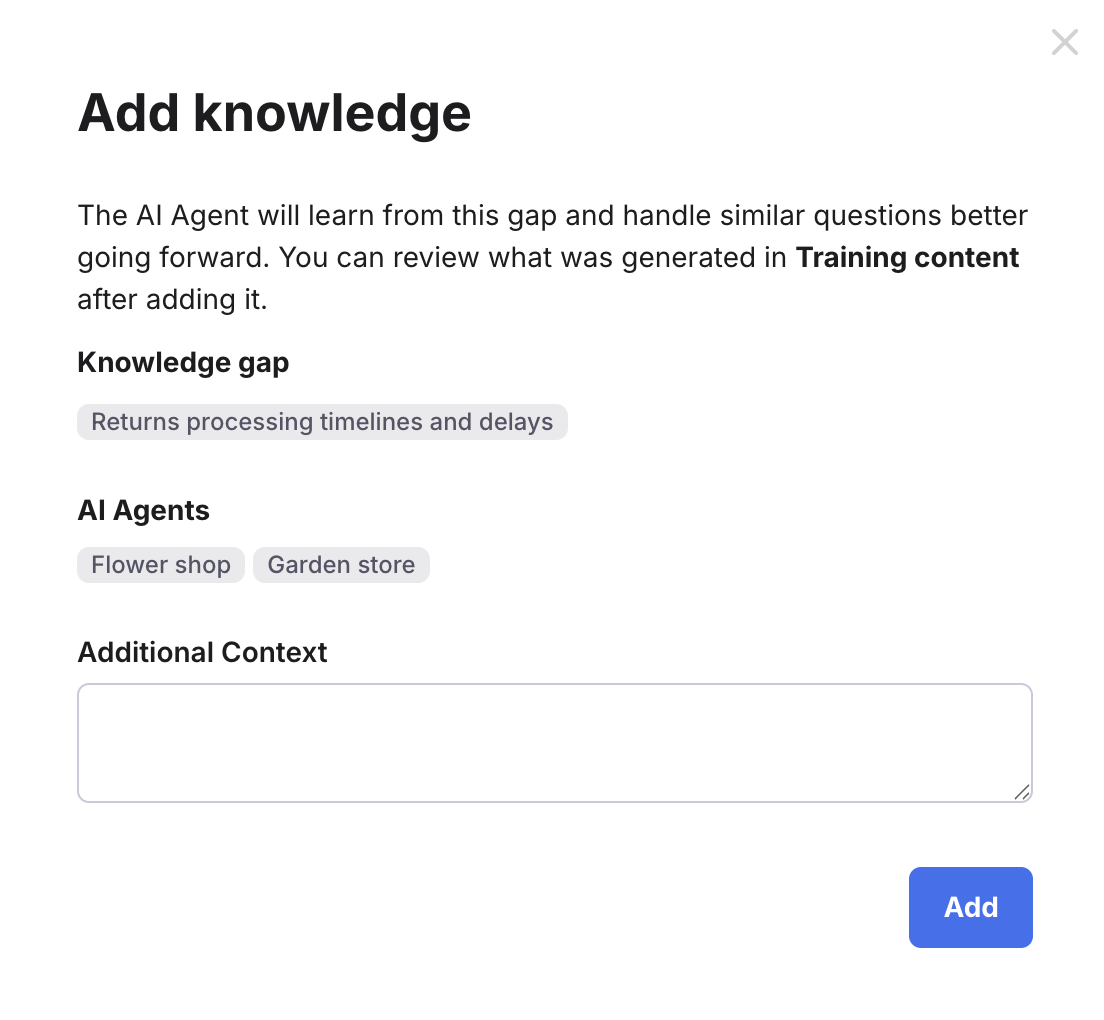
- Optionally, you can enter additional information in the Additional Context box to provide more information, such as some clarification about the gap, edge cases or exceptions, or even internal notes that might not be obvious from tickets alone. For example, if the gap relates to customers collecting items, you might add "Collection is free or collection can be arranged via this link".
Providing extra context improves the quality of the generated content, especially for nuanced scenarios. - Select Add.
eDesk AI will now generate the content.
First, it checks whether there are existing articles in Training Content that relate closely to the gap:- If information exists in the Training Content that is related to the gap, it will merge this information into the article it previously generated.
- If no related article exists, eDesk AI will create a new article.
- eDesk AI creates a new library in the Training Content that contains the new/updated article.
- The name of the library begins with [AI Agent] Learned knowledge, where [AI Agent] is the name of the AI Agent.
For example, Jennifer Learned knowledge - Collections, where the AI Agent is named Jennifer. - It is assigned automatically to the AI Agent.
- All articles generated to close Knowledge gaps for this Agent will be added to this library.
- The name of the generated article is based on the gap name in the Knowledge gap listing.
- The name of the library begins with [AI Agent] Learned knowledge, where [AI Agent] is the name of the AI Agent.
- Now, you must review the new content for accuracy, tone and brand alignment, policy compliance, and over-promising or assumptions.
Don't skip this step - it's critical because the generated content will be very detailed and might require editing.
Go to Settings > AI > Training content and select the new library.
A listing of the created/updated article(s) is displayed. - Select each article and review its contents. You can manually add/delete/edit any content.
05 What if I don't want to change an article flagged as a Knowledge gap?
If you're happy with the Training content that has been flagged as containing a gap and you don't want the article updated, you can mark the item as Not a gap. This will instruct the AI to delete the Knowledge gap from the list and ignore this Knowledge gap in future.- In the row for the gap, select the More Actions (three dots icon) to display a menu.
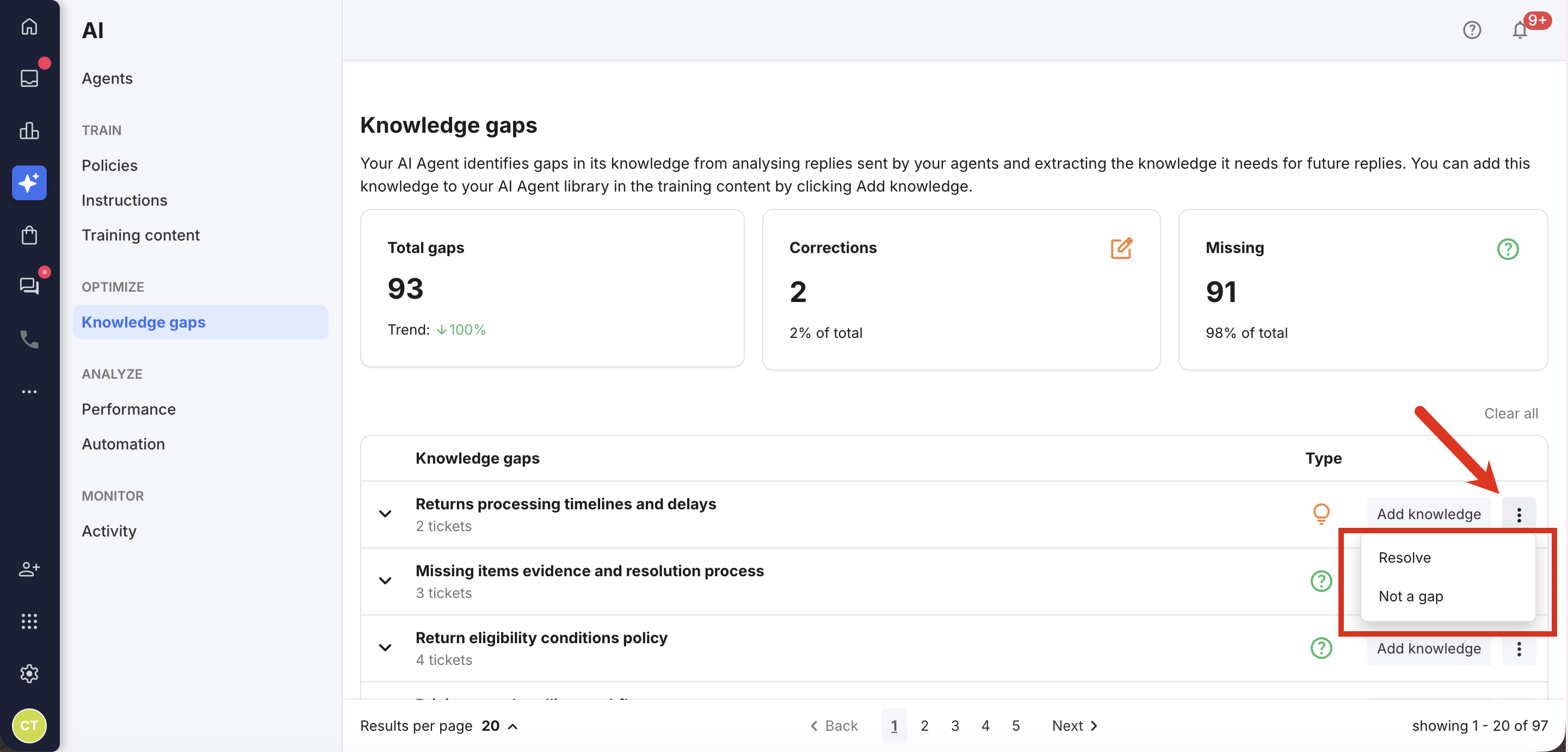
- If the gap is not valid, i.e. you don't want eDesk AI to do anything about it now or in the future, select Not a gap from the menu. This instructs eDesk AI to ignore this gap in future.
If you want to remove the Knowledge Gap from the list but allow eDesk AI to flag it as a gap should it recur, select Resolve. The Knowledge Gap may reappear in the list if the same/similar message comes in again in future.
Further reading
For further information on eDesk reporting, see here.
To learn about eDesk CSAT, see here.