eDesk's AI photo checker reviews photos submitted by customers to ensure they are genuine, match the order, and have not been modified or AI generated. It will flag any photos that fail these checks for your support to review, allowing a human agent to decide next steps. This photo checker is available for AI Agents and in the ticket as part of AI Assist.
This help file explains how the photo checker works and what happens if a submitted photo fails its checks.
01 Introduction
When a customer shares a photo, the photo checker runs four checks:
- Does the photo match the order? The AI reads the order number and tracking number shown in the photo and compares them to the order on file.
- Has the photo been edited? The AI reads the hidden information stored in the image file (for example, any editing software it has passed through).
- Is the photo AI generated? The AI estimates how likely it is that the photo was created or heavily altered by AI.
- Do multiple photos show the same item? If the customer sends two or more photos, the AI checks that they show the same item with consistent damage.
If the photo passes checks:
- The AI Agent or AI Assist will continue as usual.
If the photo fails its checks:
- The photo is flagged in the ticket so your Agents can see why (see section 03).
- If the reply would complete one of the following actions, the AI will not send it. Instead, the ticket is passed to a human agent for review:
- Refund
- Return approved
- Cancellation accepted
- Replacement offered
- Double charge acknowledged
- For all other replies, what happens next is decided by your Procedure. If your Procedure does not state what to do when a photo fails its checks, the ticket will be passed to a human Agent rather than sent automatically.
If the photo cannot be checked:
eDesk AI will check ONLY a real photo that is uploaded as one of the following file types:
- JPG
- PNG
- GIF
- WEBP
PDFs, icons, signatures and tracking pixels will not be checked for fraud. If a photo is blurry or its details can't be read, it will not be flagged and the AI will continue as usual. Missing information never counts against the customer.
Important: Your Procedures should be set up to handle all of the above scenarios. For example, if the customer uploads a PDF as photographic evidence of a fault, you can set your Procedure to ask them to share the image as a JPG instead.
03 What you'll see in the ticket when a photo fails checks
When a photo fails the checks, the ticket will show:
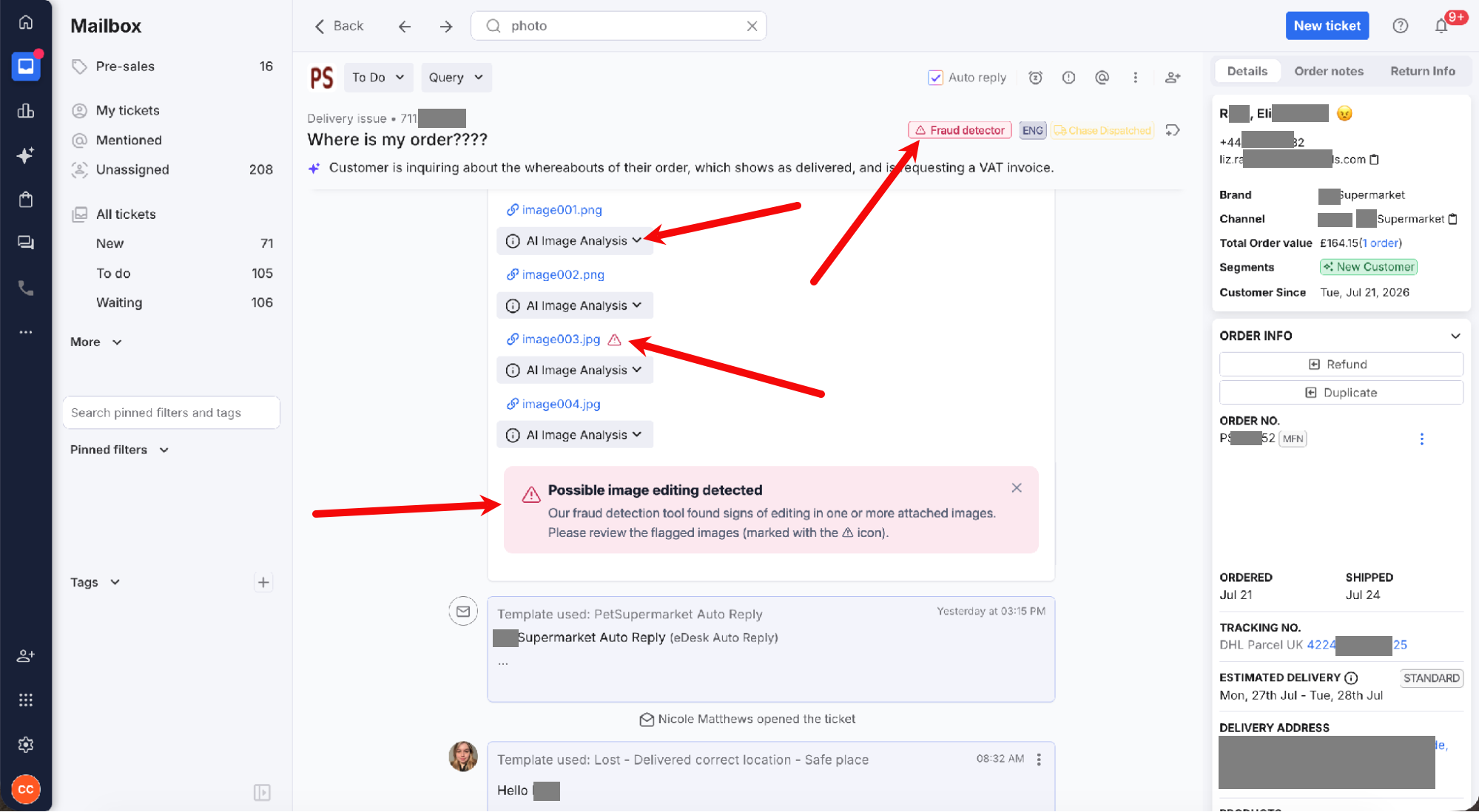
- A red "Fraud detector" tag sits in the ticket header, beside the language and status tags.
- A red banner below the attachments reads "Possible image editing detected" and asks you to review the flagged images. You can close the banner.
- A warning icon appears next to each flagged attachment's file name (here, image003.jpg). The warning will continue to be displayed after the banner is closed.
- Each attachment also has an AI Image Analysis dropdown with details of the analysis for that image.
Missing data never counts against the buyer: an unreadable photo is flagged as "not verified", rather than flagged as "possible image editing detected".
On tickets that don't involve a refund, return, cancellation, replacement or double charge, you may see the flag but the reply will not be held.
04 When the photo checker runs
The photo checker will review a customer's photo if the following are in place:
- The channel has an agent profile set up.
- The ticket is handled by AI Assist or by an AI Agent Procedure that is switched on.
The photo checker reviews photos on the following messages:
- Any message that contains only a photo, with no meaningful text.
- Returns, Post-Sales and Pre-Sales messages.
- Messages where the customer could be accepted or refused a return.
- Messages where the customer has been asked for a photo or proof, e.g. a Procedure step that asks the customer to "please send a photo".
Note: Cancellation requests are only checked if they match one of the above, for example if the customer sends a photo on its own, or your Procedure asks for a photo.
The photo checker works on any channel where AI Assist or the AI Agent is set up to reply, including eBay, Amazon, Shopify, PrestaShop, WooCommerce, TikTok Shop, Walmart and Mirakl marketplaces. There is no extra cost to use it.
05 No customer impact
Customers are not aware of the photo checker or the result of its checks. The only difference is that your human agents have additional information about the submitted photo, and if the AI Agent escalates it to a human, then the customer may receive a slower reply from your team.Further Reading
Do you use AI Agents or Chatbots in eDesk? Most jurisdictions insist you disclose use of AI. Learn more here.