The Procedure gap report highlights possible gaps in the Procedures you have created for your AI Agent. View the report to easily identify and fill missing steps in your Procedures, and empower your AI Agent to independently handle even more of your customer queries.
This help file explains the Procedures gap report and how to fill the gaps it highlights.
Before you start
- To access the Procedure Gaps report, you’ll need an Admin or Team Lead account.
- Read this help file that explains all about Procedures.
01 Introduction
Your AI Agents use the Procedures you've provided to respond to your customer's queries by auto-replying and/or performing actions such as accepting a return. If the AI Agent cannot reach a successful Outcome using the appropriate Procedure, eDesk checks whether this failure is part of a recurring pattern in which the AI Agent is unable to handle customer tickets like this one. If it is, then eDesk identifies this as a gap and logs it in the Procedure Gaps report.
To close the gaps, review the Procedure gaps and instruct eDesk to close them. eDesk's AI will then either draft a new Procedure or suggest additions to an existing one to resolve the gap. Then all you need to do is inspect what it's proposed, and edit if needed. A new Procedure won't run until you review it and switch it to Auto; a suggested addition to an existing Procedure won't take effect until you apply it.
Once the gaps are closed, your AI Agents will be able to handle tickets of this type successfully, enabling your human Care Team to devote their attention to the tickets that are non-standard or that need personal handling.
02 Gaps explained
To identify possible gaps, eDesk looks for patterns among the tickets that the AI Agents failed to handle successfully. If tickets share a Type, Intent (what the customer wants to achieve by sending the message to the Care Team), or Resolution (the kind of action the AI Agent would need to take to reach an Outcome that resolves the customer's Intent), then this is highlighted as one of the following types of gap:
- Procedure Gap
Procedure Gaps are identified when there are recurring instances of the AI Agents failing to handle similar tickets because they can't find a matching Procedure.
For example, an AI Agent handles tickets from European marketplaces, but does not have access to a Procedure of Type Cancellation. When a cancellation request arrives from a European marketplace, this AI Agent cannot handle it using a Procedure, making this a Procedure Gap. - Knowledge Gap
Knowledge Gaps are identified when there are recurring instances of the AI Agents failing to handle similar tickets - not because they can't find a Procedure, but because they could not find the information they needed to follow the Procedure to an Outcome that resolved the customer's Intent. For example, the step needed for a specific customer Intent was not in the Procedure that the AI Agent followed.
03 Accessing the Procedure gaps report
1. Select the AI icon in the main menu to display the AI menu and landing page.2. In the AI menu, select Procedure gaps.
The report is displayed:
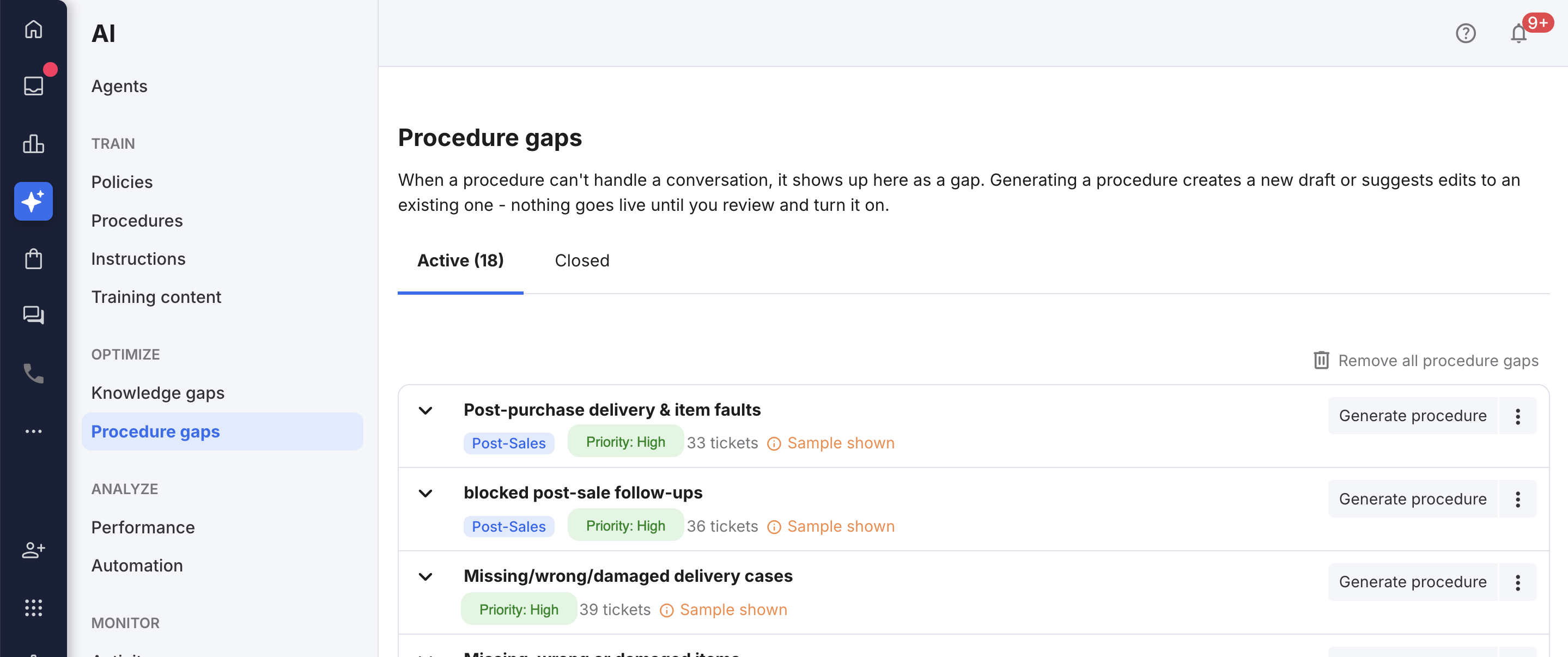
The report presents:
A Summary that includes:
- total number of current gaps.
- number of gaps that have been closed.
- Type
(or topic) of the tickets for which the AI Agent encountered the gap, e.g. Post-Sales - Priority
High, Medium, or Low. Priority is High if a high volume of tickets were affected, which the AI Agent could not handle because of the gap. - Number
Number of affected tickets, e.g. 39 tickets - Sample Shown
Displayed for High Priority gaps. Indicates that only a sample of the tickets affected have been logged here, i.e. the Procedure Gaps report has not logged all the tickets that are affected by this gap since there are so many, but closing the gaps that affect the sample will enable the AI Agent to handle all affected tickets,
04 Viewing the affected tickets
To view a list of the tickets affected by the gap (or a sample of the affected tickets if volume is high), select the category name to expand the view.The ticket listing is displayed:
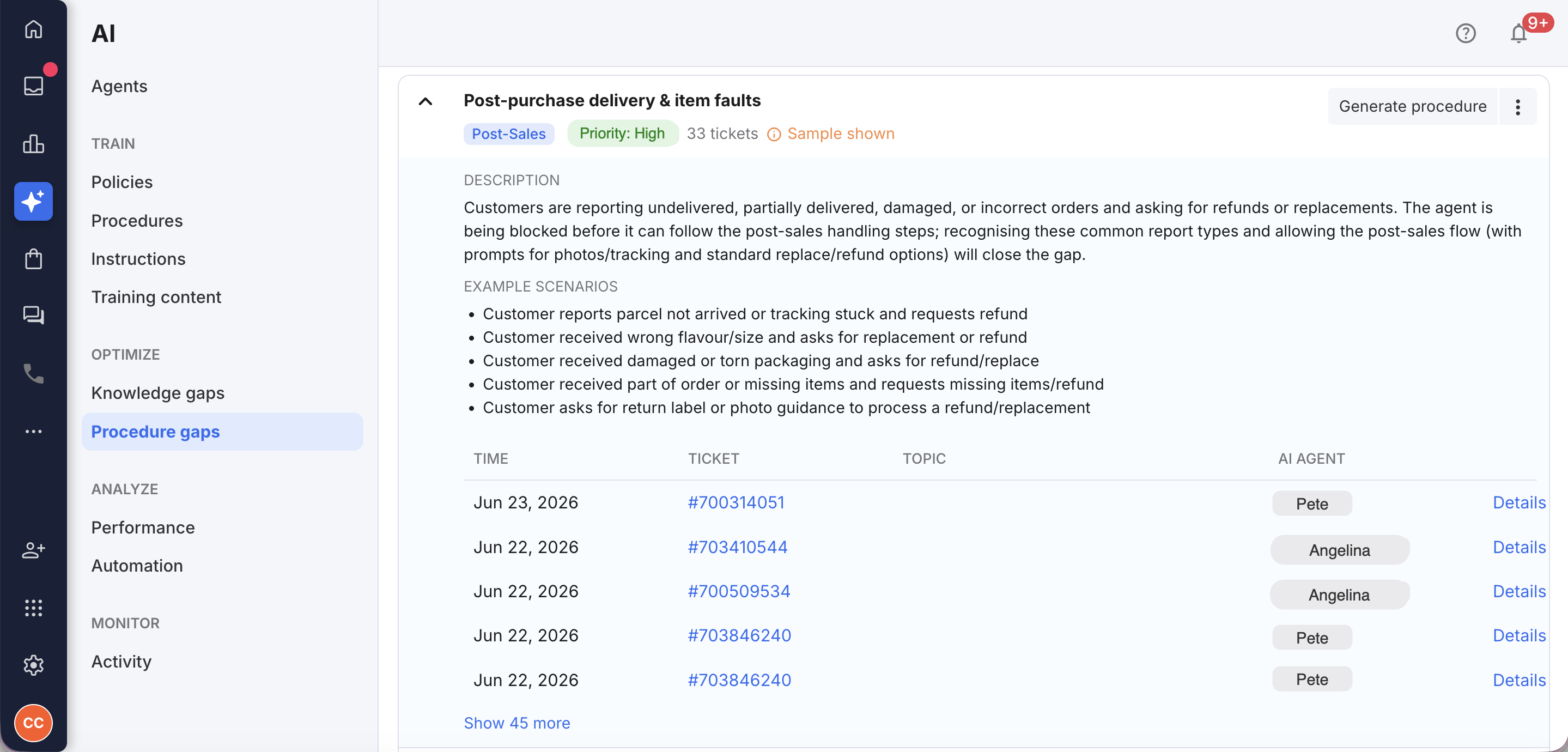
This view shows the following additional information:
Description
A summary of the gaps and where the gap lies.
Example scenarios
Typical scenarios for which the AI Agent encounters this gap.
Ticket listing
For each ticket, view:
- Time
Time that the ticket arrived in eDesk. - Ticket
Ticket ID. Select this to open the ticket, - Topic
The Type. - AI Agent
AI Agent name. - Details
Select this to open the Reply Analysis. See next section of this help file.
05 Viewing Reply Analysis
The Reply Analysis shows useful information that will help you understand the gap and how it should be closed.To view Reply Analysis for a ticket:
In the Procedure gaps page, select the arrow to expand the category and select Details in the row for the ticket you're interested in.
The Reply Analysis window opens:
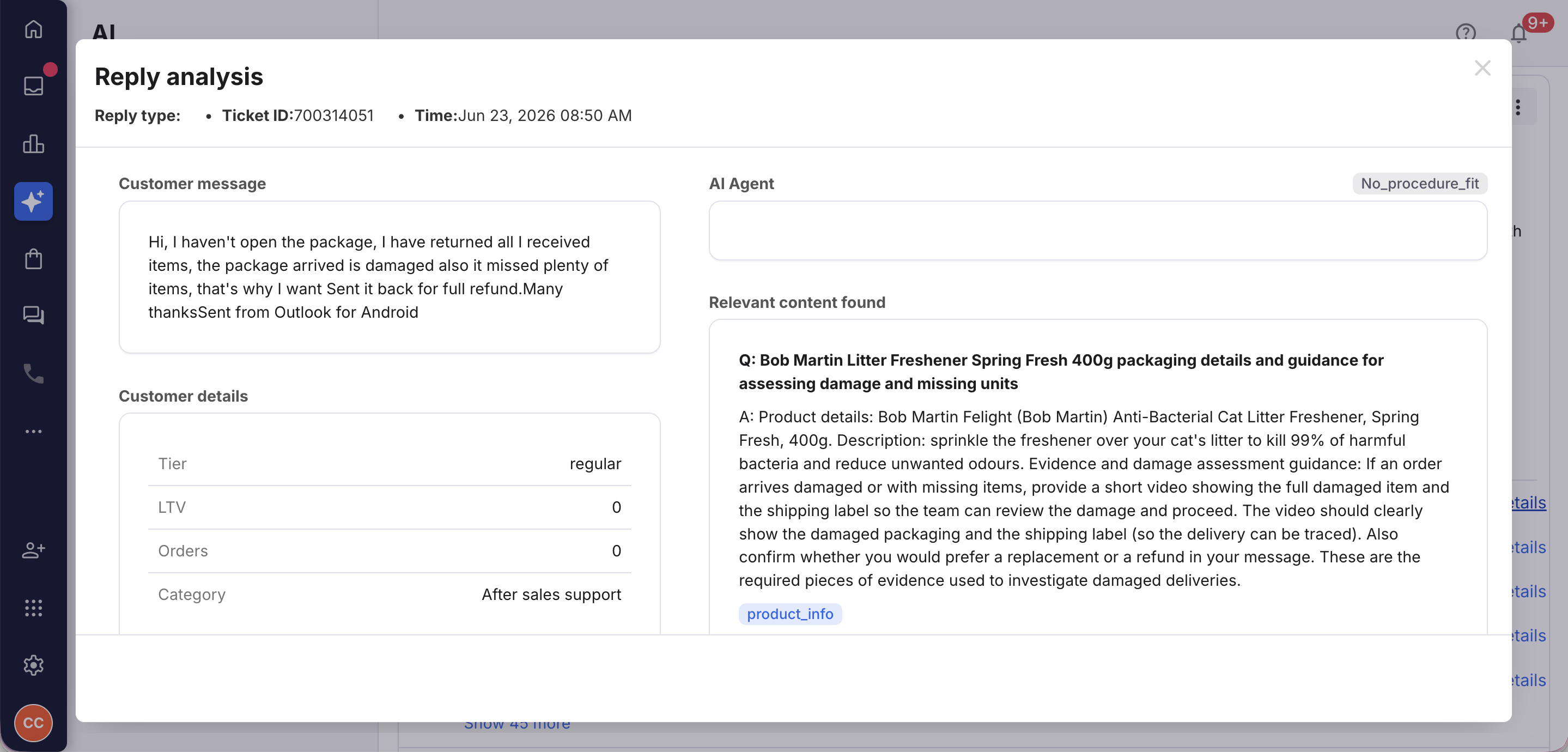
This window displays the customer message, the customer's details, the name of the AI Agent, and the relevant information found by the AI Agent, which is labelled with a blue lozenge that indicates the information source, e.g. a product feed (product_info).
06 Closing a gap
The good news is that eDesk's AI does most of the work to close your gaps. All you need to do is instruct eDesk to close the gap, and it will either draft a new Procedure from scratch or propose additions to an existing one. Then you review/edit what it's proposed.A brand new Procedure defaults to Off and won't run until you switch it on. A proposed addition to an existing Procedure is a suggestion you can apply, edit, or discard — it won't take effect until you apply it.
Over time, as your Procedures are optimised to meet your customer's ticket patterns, the Procedures Gaps report will report fewer and fewer gaps.
To close a gap:
1. In the Procedure gaps page, locate the row for the gap you want to close.
You now have the option to resolve it (close the gap) or tell eDesk that it is Not a Gap (see next section).
2. Select More Actions (three dots) > Generate Procedure:
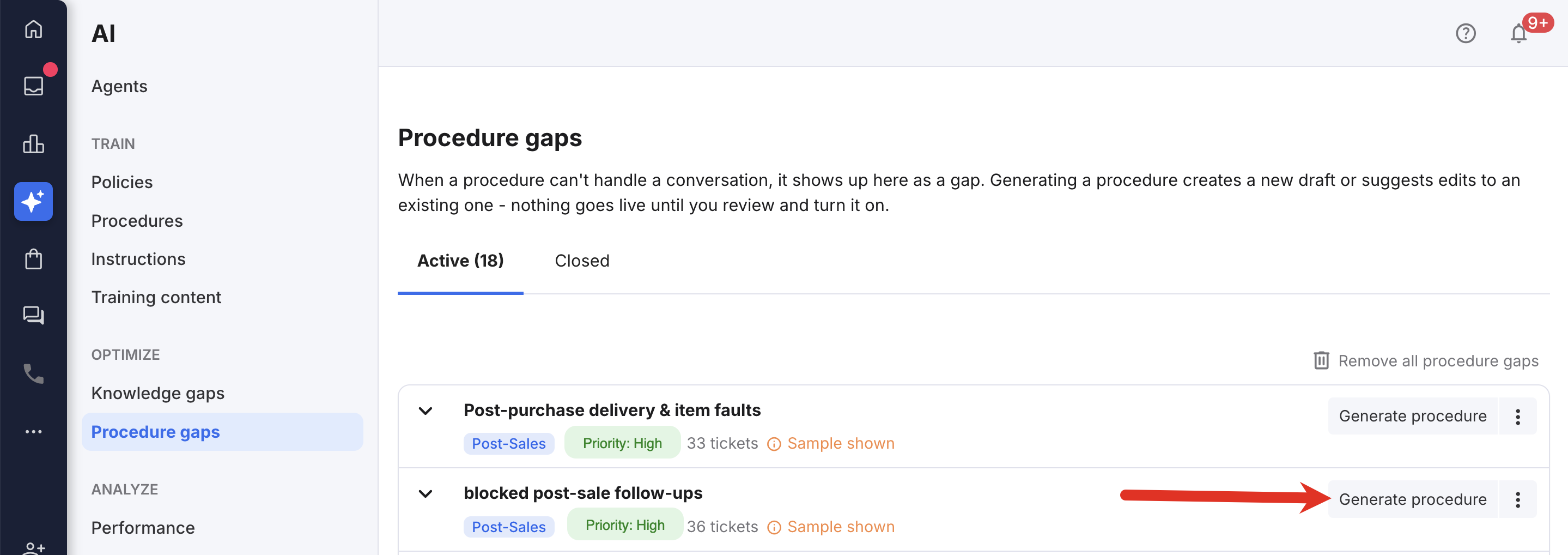
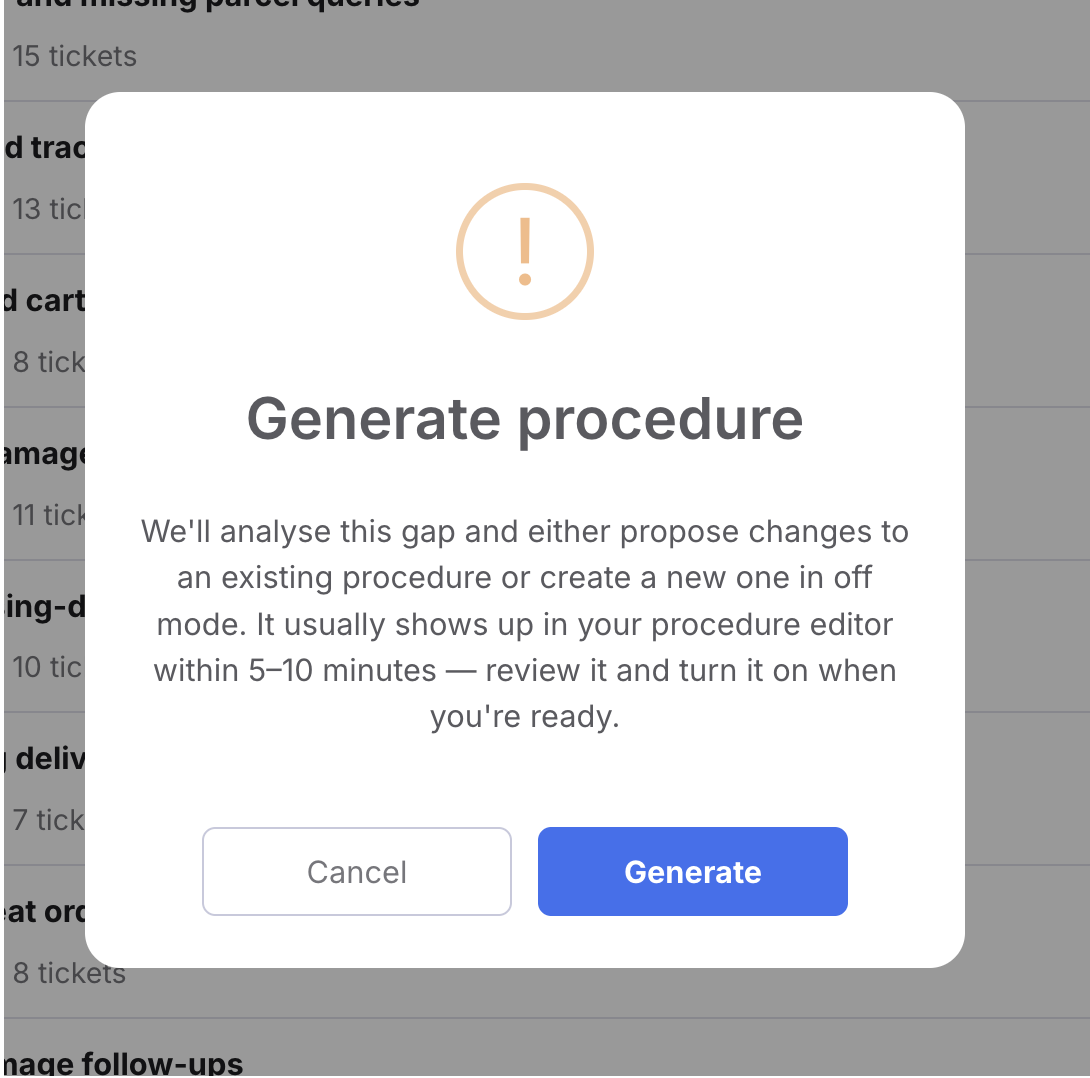
3. Select Generate.
eDesk AI will now generate the content.
- First, it checks whether there is an existing Procedure that relates closely to the gap.
- If a related Procedure exists, the AI proposes specific additions to it — new branches, sub-trees, or outcomes — that would close the gap.
- If no suitable Procedure exists, the AI drafts a new Procedure from scratch, based on how your human agents have resolved similar tickets. This new Procedure defaults to Off.
5. Next, review the new content for accuracy, tone and brand alignment, policy compliance, and assumptions. Don't skip this step - the generated Procedure will likely need tweaking by you.
Make any necessary changes.
6. Ensure your AI Agents have access to the Procedure. This help file explains how to view Procedure settings.
7. Once you're happy with a new Procedure, switch it on to make it live. For a proposed addition to an existing Procedure, apply it to make the change live.
07 Not a Gap
If you're happy with the Procedure that has been flagged as containing a gap and you don't want it updated, you can mark the Procedure as Not a gap. This will instruct the AI to delete the gap from the list and ignore this gap in future.- In the row for the gap, select the More Actions (three dots icon) to display a menu.
- If the gap is not valid, i.e. you don't want eDesk AI to do anything about it now or in the future, select Not a gap from the menu. This instructs eDesk AI to ignore this gap in future.
If you want to remove the gap from the list but allow eDesk AI to flag it as a gap should it recur, select Resolve. The gap may reappear in the list if the same/similar message comes in again in future.

Further reading