Base.com is a web-based order and delivery management platform.
Connecting your Base.com account will allow the tracking data for all your orders to flow directly into eDesk.
Before you start
- You’ll need an Admin login to eDesk. If you don’t have an Admin login, you can request one from an Admin user within your business.
- You'll need a Base.com account. To find out how to create one, see here.
01 How do I connect Base.com in eDesk?
To pull information from Base.com we need to create a Base.com 'API token'. Follow the instructions below:
- Log in to Base.com.
- Go to My Account → API.
- Click Add API Token (or Generate Token).
- Give it a name (e.g. "eDesk") and save.
- Copy the generated token. You'll paste it into a screen in eDesk when following the instructions in the next section of this help file.
02 Adding the API token to eDesk
Now we will need to paste the API token into eDesk.
- In eDesk, go to the App Store and click the Base.com tile.
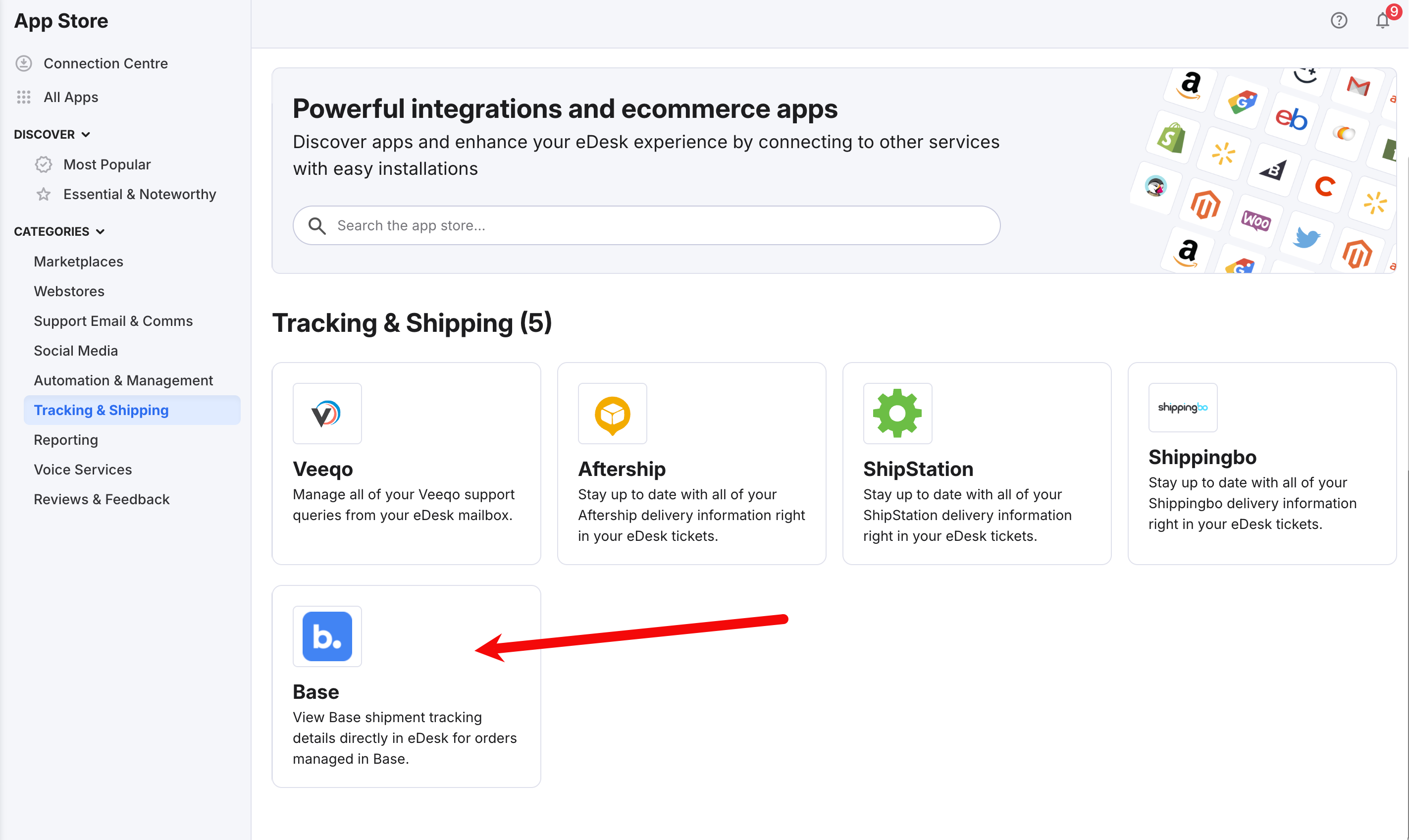
- The App Store page for Base.com provides an Overview of how the channel works with eDesk, and an Installed Channels tab will also be shown if you already have apps for Base.com accounts installed. Click Install App to go ahead and install a new Base.com account.

- The Integrations page in Mailbox Settings is opened showing the Base tab.
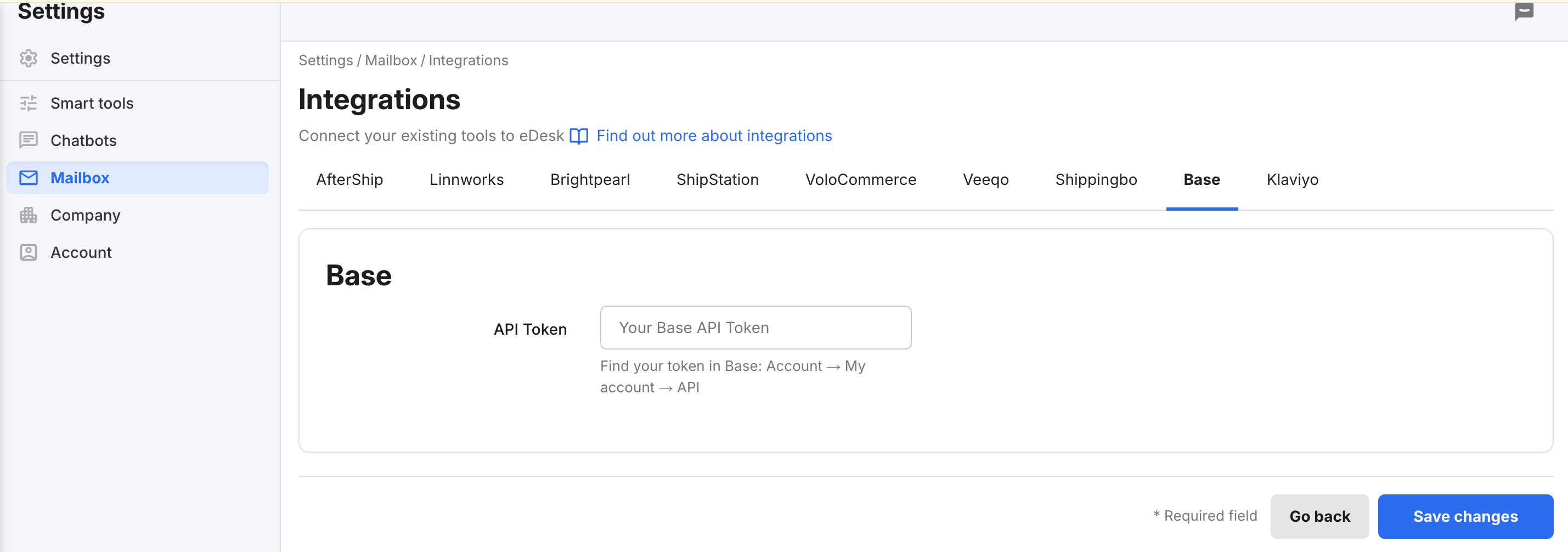
- Paste your API Token into the API Token field.
- Once this is done, click Save changes.
Congratulations, you have now connected Base.com with eDesk.
03 Where do I see data from Base.com in eDesk?
Now that you've successfully connected your Base.com account, we'll import tracking data directly into your eDesk account.You'll see the Base.com tracking data on the right-hand side of every ticket.
If there's no tracking URL displayed, click the button to refresh the tracking URL from Base.com and store it permanently in the ticket.
You'll see the tracking information in every order too.
Note: The Base.com app does not update the dispatched and delivered dates for the orders; this is still set by the marketplace.
Further Reading
To learn how to connect AfterShip with eDesk, see here.
To learn how to connect Linnworks with eDesk, see here.