The snooze feature is made for situations where a ticket requires action but is currently on hold. A typical example of this is when you’re waiting for more information from a customer or a teammate to take action on the ticket.
Snoozing a ticket will remove it from its current ticket status and move it to the Snoozed section of the Mailbox.
Note: You may snooze a ticket but not its SLA which will continue to count down even when a ticket is snoozed.
Before you start
- You’ll need a login to eDesk. If your organisation already has an eDesk plan, ask another user in your organisation to invite you to eDesk, or ask your Admin user for a login.
01 How to 'Snooze' a ticket
There are a number of ways to snooze a ticket:
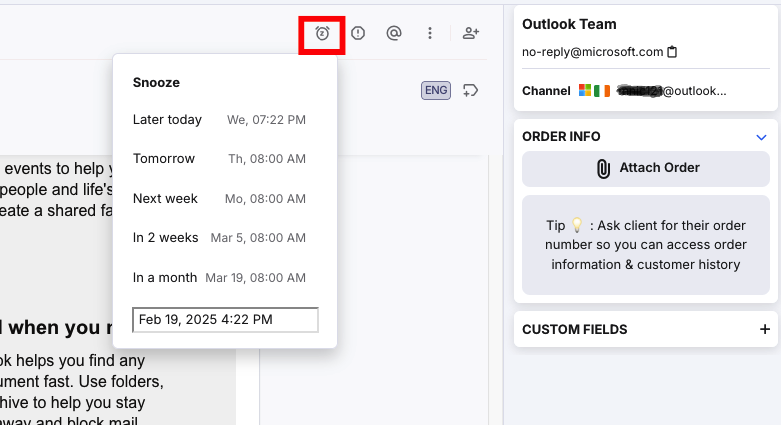
1. From within a ticket
- Click on the ticket in question.
- Hit the Snooze option on the top-right of the ticket view.
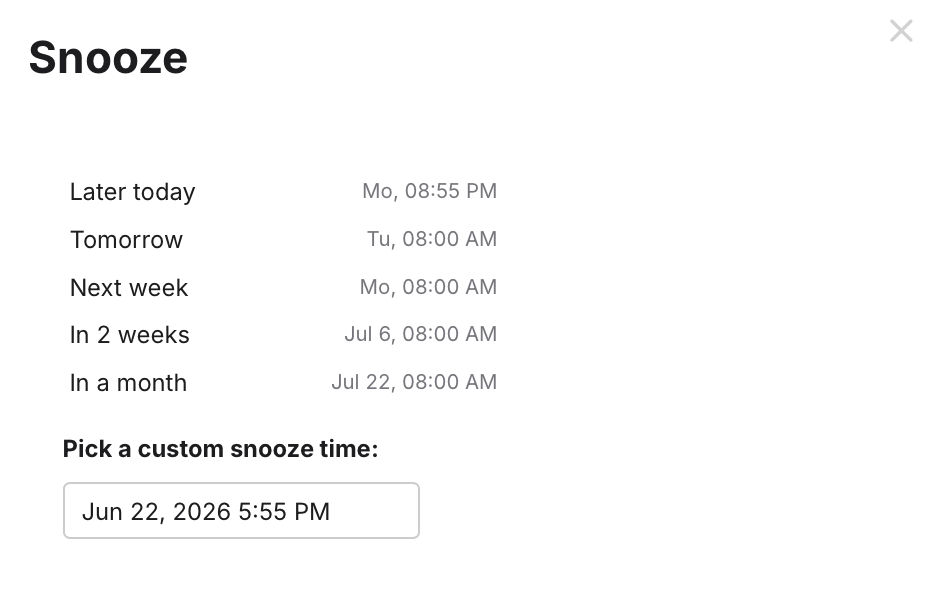
- Choose how long you want to snooze the ticket.
2. From the ticket List
- From the List view, hover over the ticket you want to snooze.
- The quick options will show on the right-hand side of the columns. Click the Snooze button there.
- Choose how long you want to snooze the ticket.

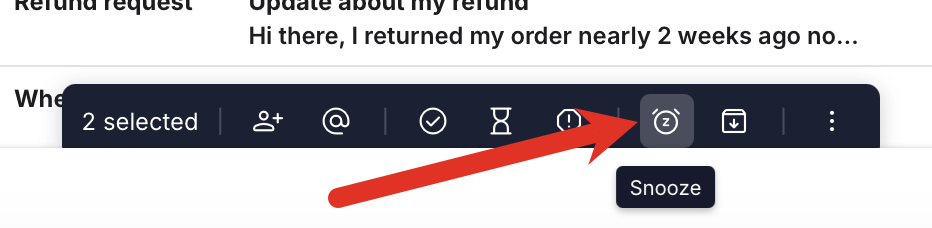
3. Bulk snooze tickets
- From the List view, select the tickets you want to snooze.
The Bulk options will be displayed. - Select the Snooze button.
- Choose how long you want to snooze the ticket.
02 Finding 'Snoozed' tickets
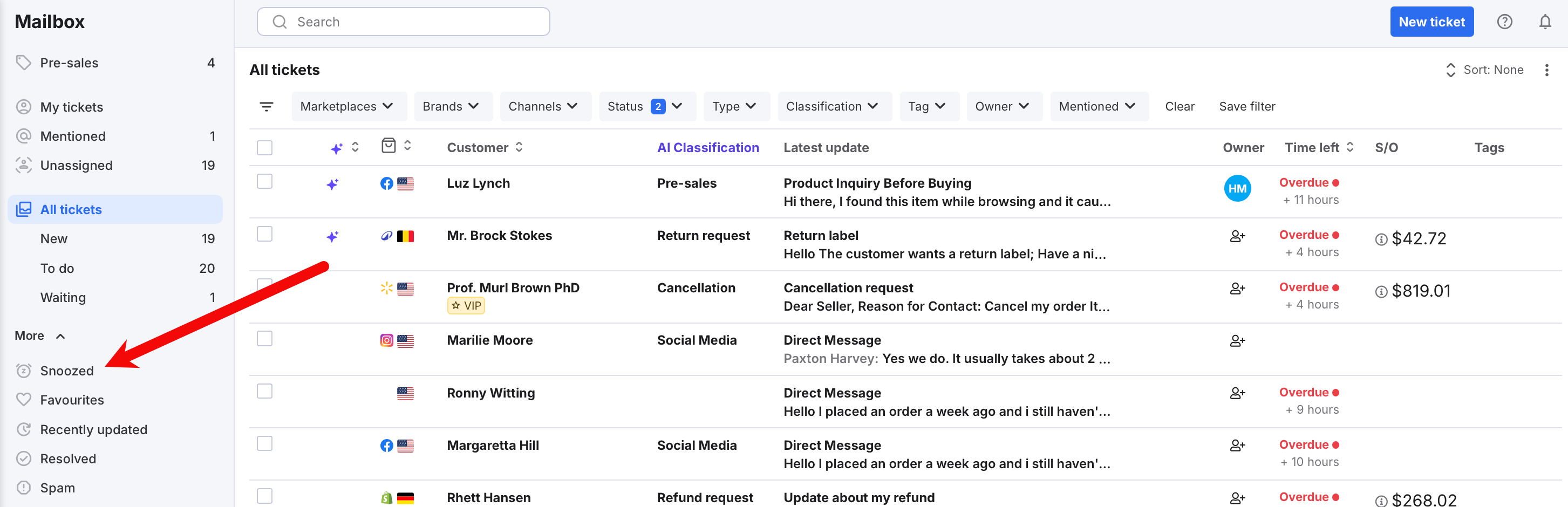
- Select More in the sidebar.
The menu expands to show more menu options. - Select Snoozed.
The snoozed tickets are displayed.
03 After the 'Snooze' period
When the snooze period has elapsed, the snoozed ticket will return to the To do status.
If a new message comes in on a ticket while a ticket is snoozed, the ticket will be taken out of snooze go back into To do.
Further Reading
To learn about Search and Filters in eDesk, see here.To learn more about Favouriting tickets, see here.