eDesk automatically closes your Resolved tickets after 14 days. Learn how this helps keep your Mailbox organized and your metrics accurate, and we also explain how to manage follow-up threads on Closed tickets.
Before you start
- You'll need an eDesk account. To find out how to create one, see here.
01 Overview
In eDesk, tickets automatically transition to a Closed status after a designated period of inactivity.
Why close tickets?
- Keeps your Mailbox clean.
- Protects your One and Done (First Contact Resolution) metrics from being compromised when customers reply months later with an unrelated message.
- Preserves historical data integrity, so that your performance insights remain accurate.
02 How Automatic Closing Works
By default, eDesk automatically sets a ticket's status to Closed exactly 14 days after it has been marked Resolved.
You can adjust this time interval for each of your connected channels:
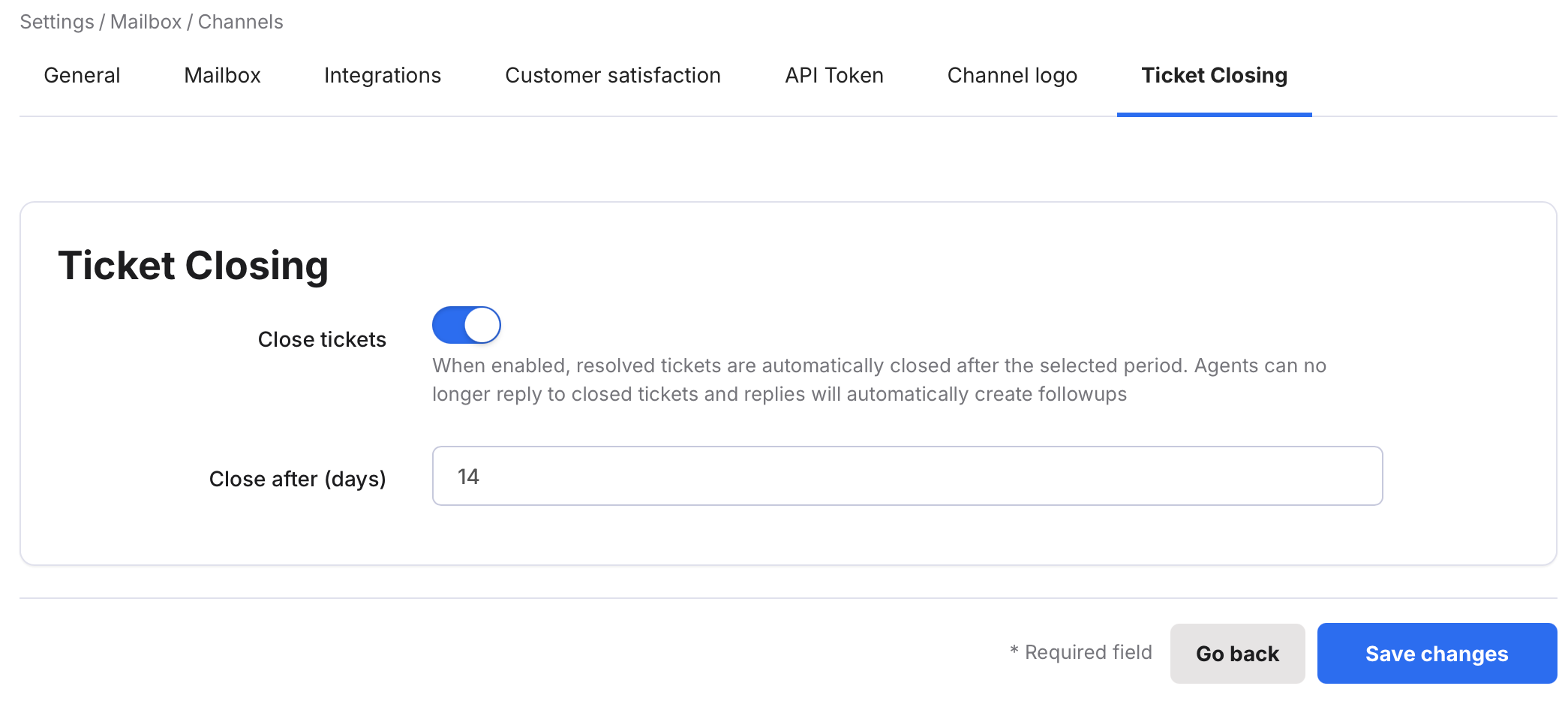
- Go to Settings > Mailbox > Channels and select the specific [Channel] you wish to edit.
- Select the Closing Tickets tab.
- Complete the Close after (days) field to set your custom auto-close timeframe in days for this channel.
- Don't forget to save your changes.
03 Reopening vs. Follow-up tickets
Once a ticket enters the Closed state, it cannot be reopened by agents or buyers under any circumstances.
- Agent Follow-ups: Agents can manually create a new thread by clicking the Create Follow-up button inside the closed ticket.
- Buyer Replies: If a buyer responds to an email associated with a closed ticket, eDesk automatically converts the incoming message into a brand-new Follow-up Ticket.
04 Follow-up Ticket features & metadata
A follow-up ticket has:
- a link to the original ticket
Both the original closed ticket and the new follow-up ticket include links to each other for quick navigation. - an AI Summary & message history
The follow-up ticket displays an AI Summary covering key details from the original ticket and you can also view the historical messages. - a fresh ticket state
Legacy metadata like tags, custom fields, and attached orders are not inherited by the new ticket. This ensures that agents classify and route the new issue without skewing past data insights.
05 Filtering and searching Follow-up tickets
Monitor and manage follow-up enquiries by:
- Using the primary Search Bar in the top navigation to search directly for follow-up ticket IDs or references.
- Using Filter Search to locate follow-up tickets and save them as a custom Pinned Filter in your secondary navigation for daily monitoring.