Aircall is a cloud-based phone system built to support customer service and sales teams. It allows you to manage your inbound and outbound calls, and automatically build a customer profile.
This help file will guide you through how you can make, answer, or decline a call via Aircall within eDesk.
Before you start
-
You’ll need an Admin login to eDesk. If you don’t have an Admin login, you can request one from an Admin user within your business.
-
You'll need an Aircall account. To find out how to create one, click here.
-
You'll need to have Aircall setup in your eDesk account. To find out how to do this, click here.
01 Receiving a phone call
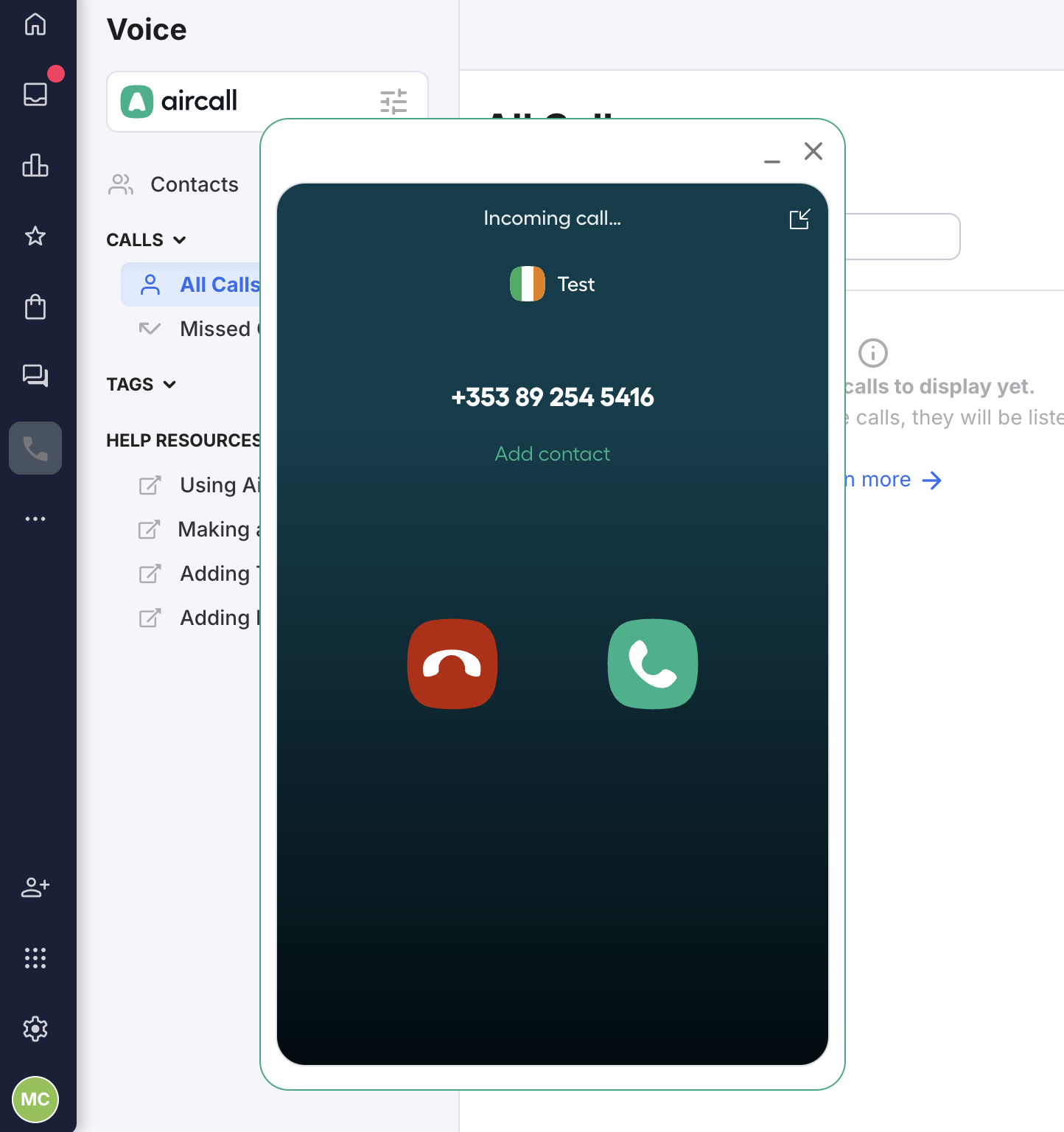
You need to be using Google Chrome or Aircall's desktop app to start making and receiving calls.When you receive a phone call, all eDesk agents with an active Aircall status and on the same phone line as the incoming call, will see the Aircall pop-up appear on-screen. The pop-up will display the phone number or full name of the client trying to reach you (if they are already a contact in Aircall/eDesk).
Click on the green icon to answer the call or on the red icon to decline the call.
If you choose to answer the call
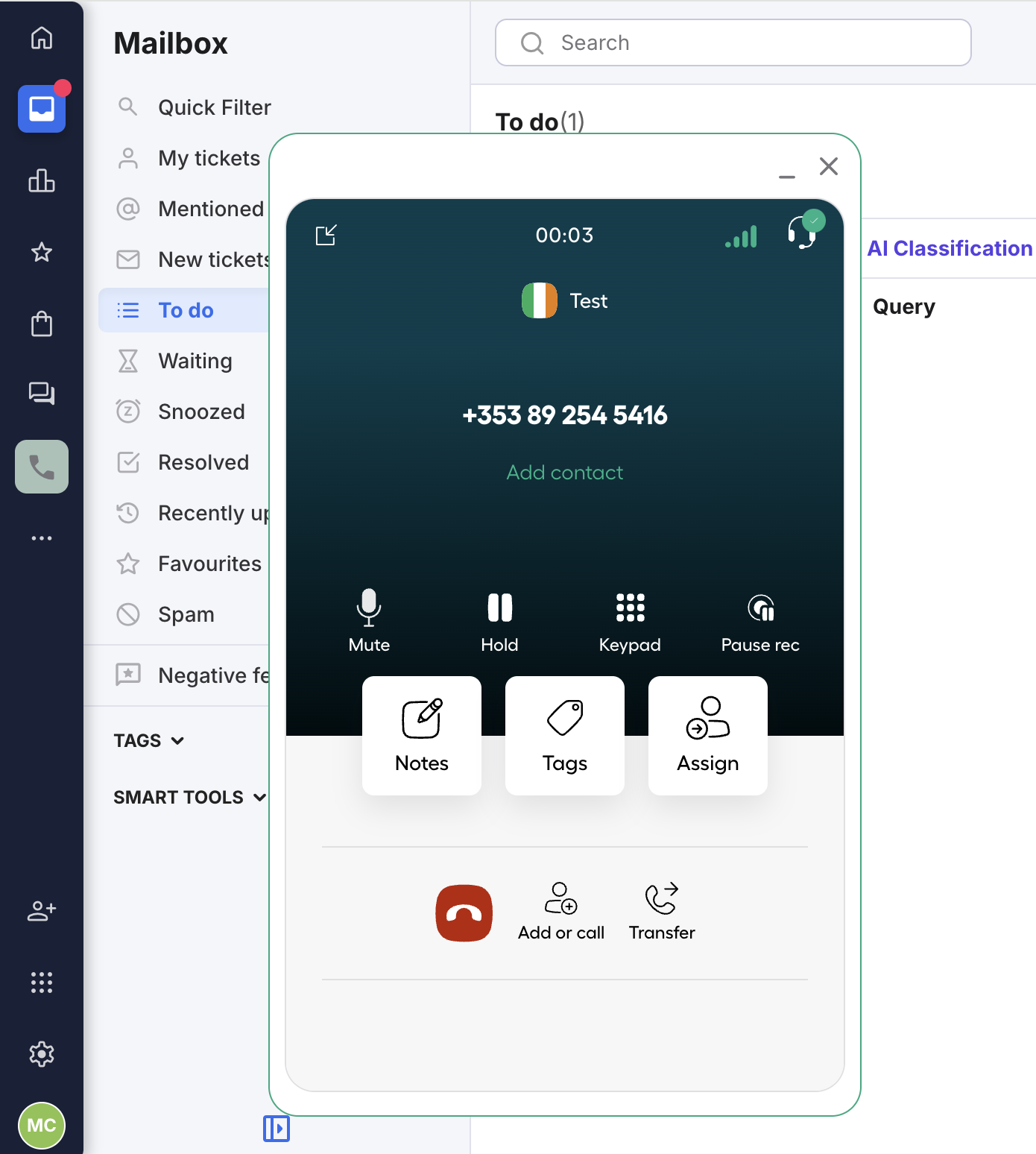
If you answer the call, you will be connected to the caller and recording of the call will begin. The pop-up dialler will change so that you can add details like Customer name, additional phone number, email and notes about the caller directly from the dialler by clicking on the Add contact button.You can also add Notes about the call, Tags or Assign the call ticket to an eDesk teammate directly from the dialler.
You can also Mute, place on Hold or Pause the recording of the call.
The options to Hang up, Add or Transfer the call are at the bottom of the pop-up dialler.
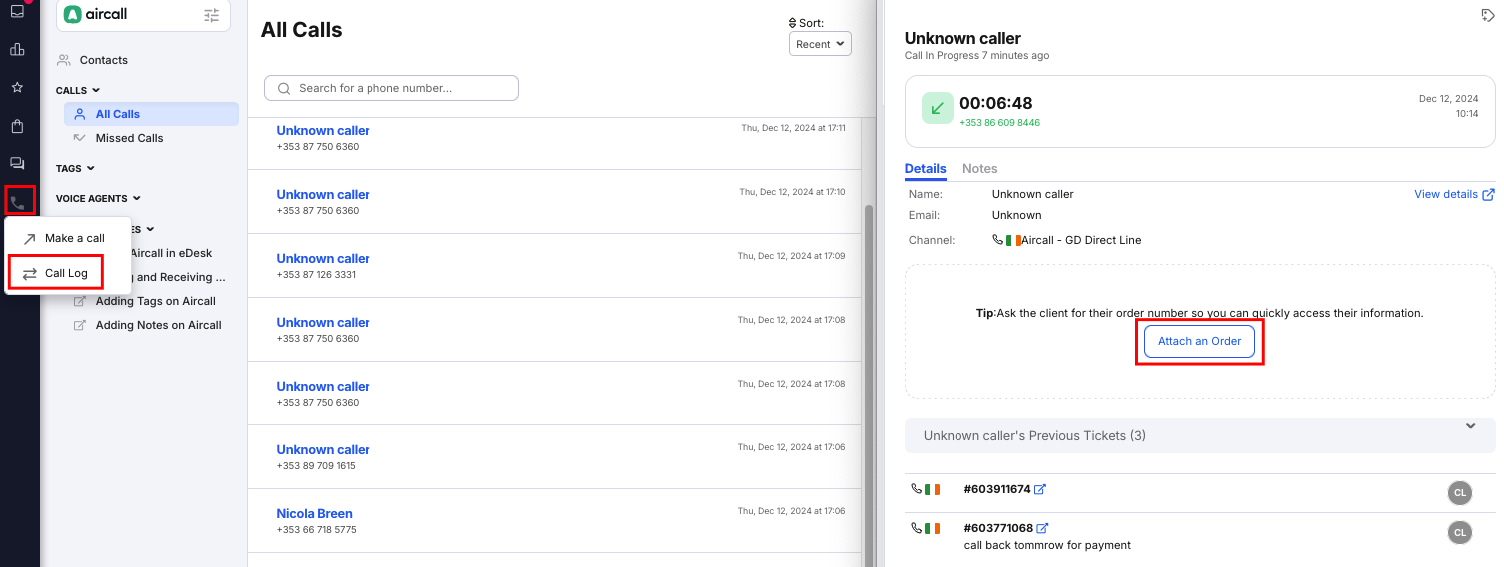
If this is an existing contact ringing you, their name, email (if available) and Previous tickets opened will automatically populate. You can view these in the Call log screen.
If it's a brand new contact ringing, you will be able to add all of the data manually either through the pop-up dialler (as described above) or from the Call log screen.
Note: Orders are not automatically attached to voice calls, but we've made it easy for you to do this from the Call log screen either during or after the call. Simply click on the Attach an Order button there.
If you choose to ignore the call
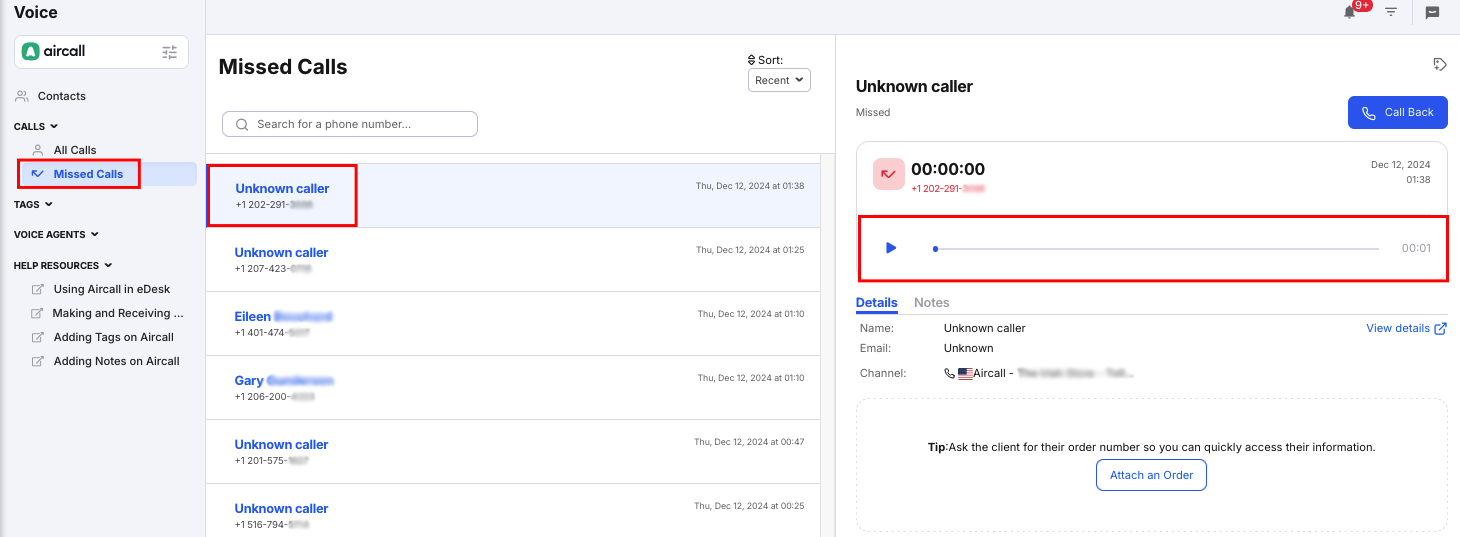
The call will remain in the queue until another Active agent on the same phone line as you takes it. If nobody answers the call, it will be displayed under the Missed Calls section and you will be able to either Call Back the customer or listen to any voicemail they might have left. If there are multiple missed calls from the same number, they will be grouped together in the Missed Calls section with the number of missed calls shown in brackets. Click the group to see the full list of calls.
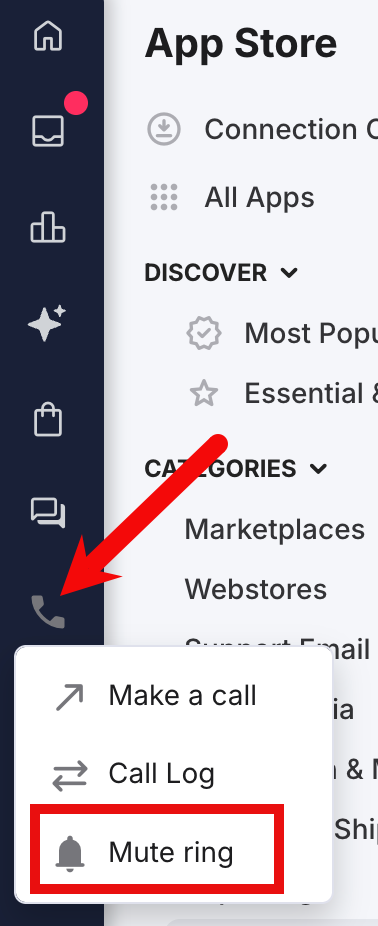
You can also silence your Aircall in eDesk if needed, so that you can't hear it ring. To do this, select the eDesk Voice icon in the main menu and choose Mute ring.
02 Making a phone call
Within eDesk, you will be able to make phone calls from various different ways.- Manually through the Aircall pop-up
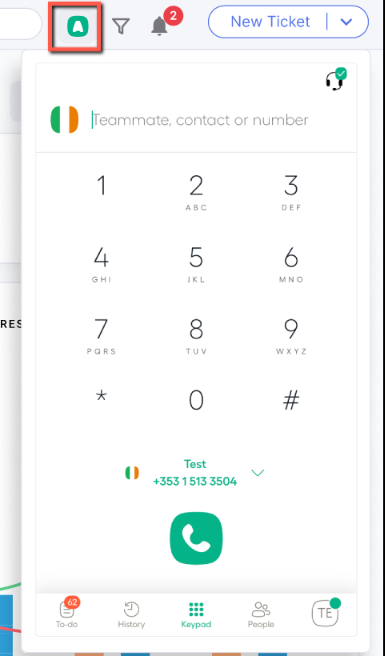
You can very easily click on the Aircall pop-up at the top of your screen and manually type the number you want to reach. Alternatively, if the customer you're trying to reach is already a contact, you can start typing their name. To make the call, press the green phone icon then.
- Initiating a call from the Contacts Page
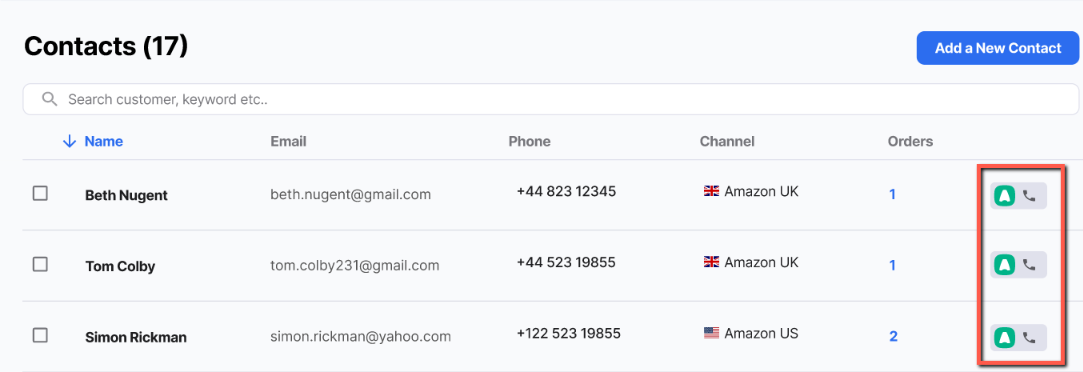 To find out more about the Contacts page, click here.
03 Review your calls
eDesk provides the recording of the call, and - if set up in your Aircall account - a transcript and summary of the call.
Call Recording
Any call you make or receive will be recorded within your eDesk account so you will be able to listen to it directly on-screen.
-
To listen to a recording, click on the All Calls section on the eDesk Voice page.
-
Near the top of the call, you will be able to play the recording.

Call Summary and Transcript
If you have set up transcripts in your Aircall account, you can view an AI-generated summary of the call and a transcript in eDesk.To set up Aircall transcripts, follow the instructions in this Aircall help document.
To view the transcript and summary in eDesk:
- Click on the All Calls section on the eDesk Voice page.
- Select the call you want to view.
- Select Transcript in the right hand panel.
The transcript is displayed with an AI Summary above it..
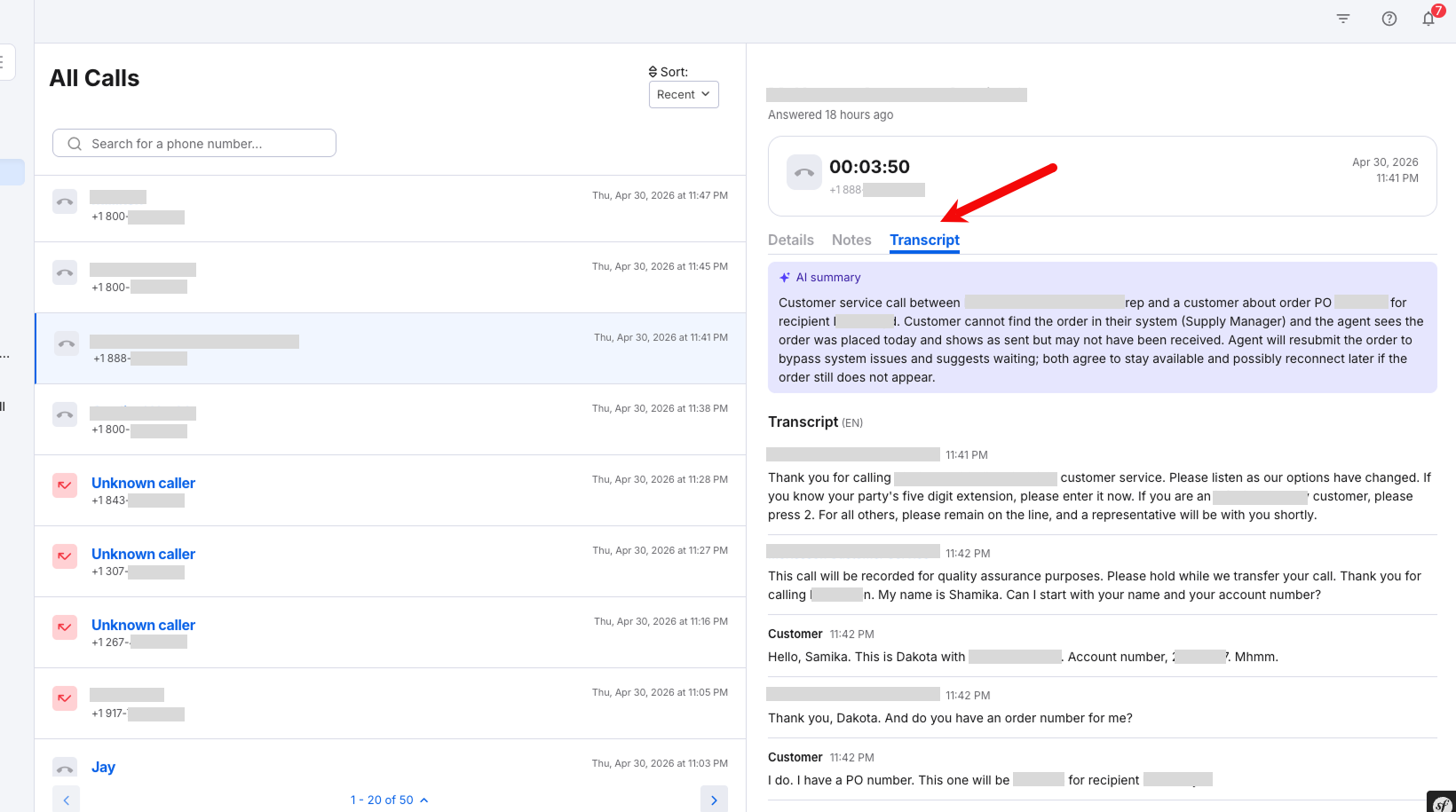
Note: All sensitive information is automatically redacted.
The AI summary will also be added to the related tickets.
04 Check Voicemails
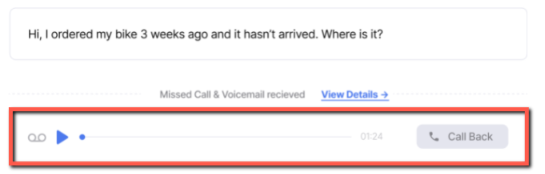
If you and your team miss a call, the contact has the possibility to leave a voicemail. If available, voicemails will be stored in various places within your eDesk account.-
Via the Missed Calls screen
When a call is missed, you can consult your voicemails via the Missed Calls section on the eDesk Voice page. To find out more about this, click here.
-
Select the call in question.
Multiple missed calls from the same number are grouped together with the number of calls shown in brackets. Click the group to see the full list of calls, and then select a call to listen to its voicemail. -
In the Details tab, you will be able to play the voicemail instantly.
 Note: if there are 0 voicemails available, the voicemail section within the details panel won't display.
-
Via an eDesk ticket
Further Reading
To find out more about using Aircall in eDesk Voice, click here.
Interested in learning about adding Tags on Aircall? Click here.