Connecting your Back Market account will allow your messages, orders, and order information to flow directly into eDesk.
All of your customer messages will continue to be available in the Customer Care section in Back Market, as will the replies you send them from eDesk.
Before you start
- You’ll need an Admin login to eDesk. If you don’t have an Admin login, you can request one from an Admin user within your business.
- You'll need a Back Market seller account. To find out how to create one, click here.
01 How do I connect Back Market in eDesk?
1. Go to the App Store and click the Back Market tile under Marketplaces. Or you can start typing Back Market in the Search bar to display it on screen.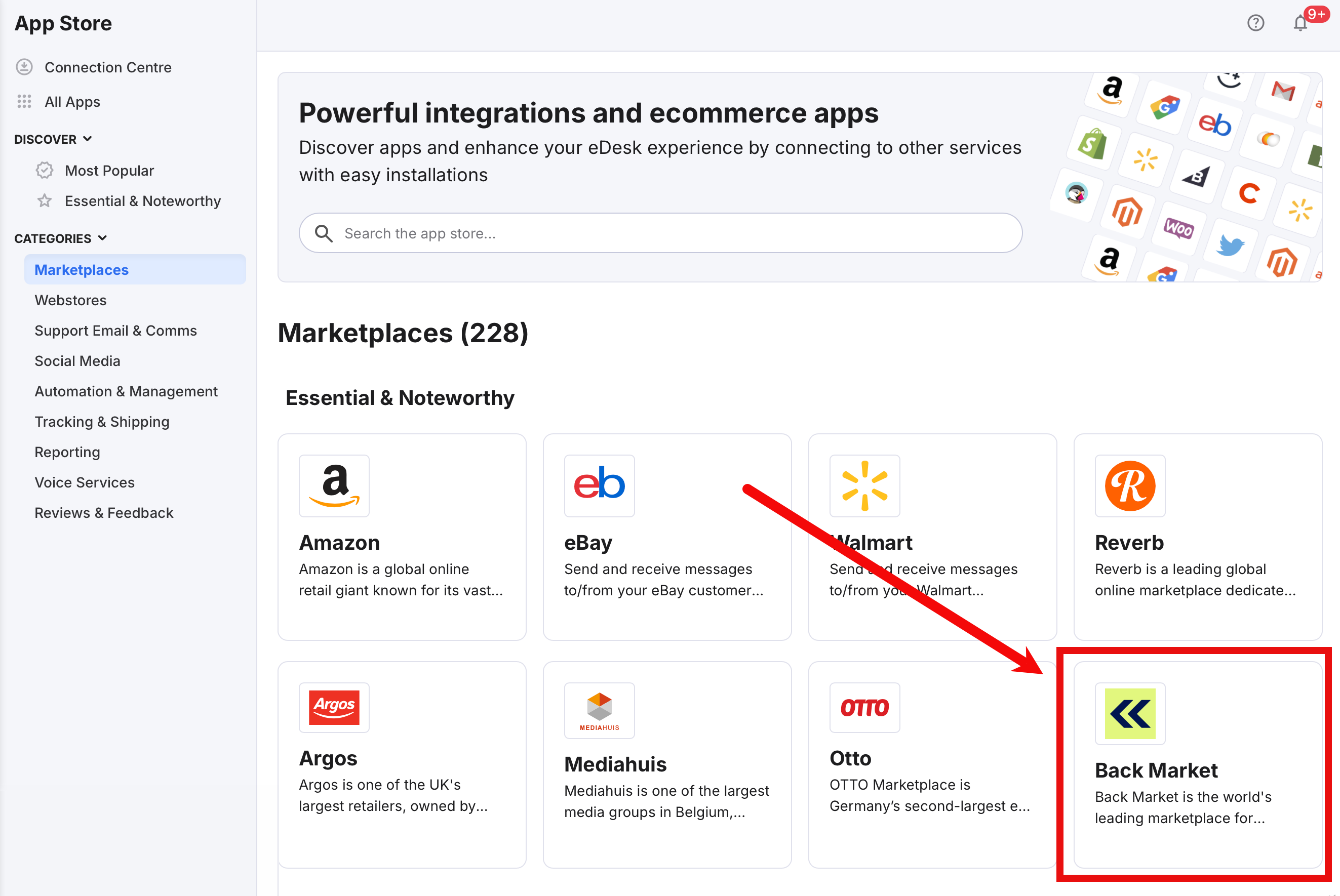
2. The App page for Back Market provides an overview of how the channel works with eDesk.
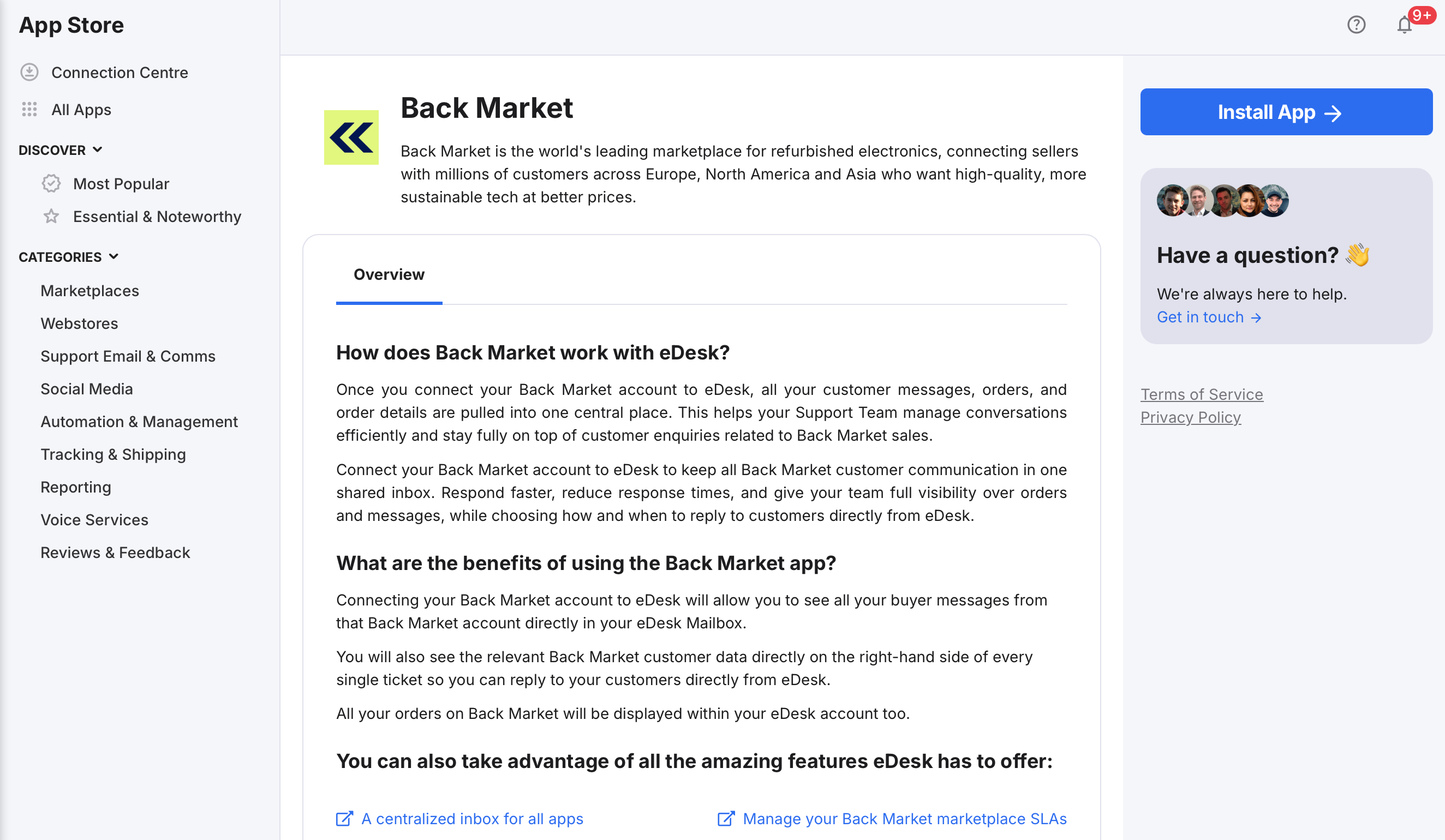
3. Click Install App to go ahead and install your Back Market account.

02 Connecting your Back Market account
To connect your Back Market account, you need to get an API Token from your Back Market Seller Portal, paste it into eDesk, then save. Follow these steps:1. In a new browser tab (we'll return to the eDesk tab shortly), go to your Back Market seller portal and login to access your Back market account.
2. Go to Options > Integrations:
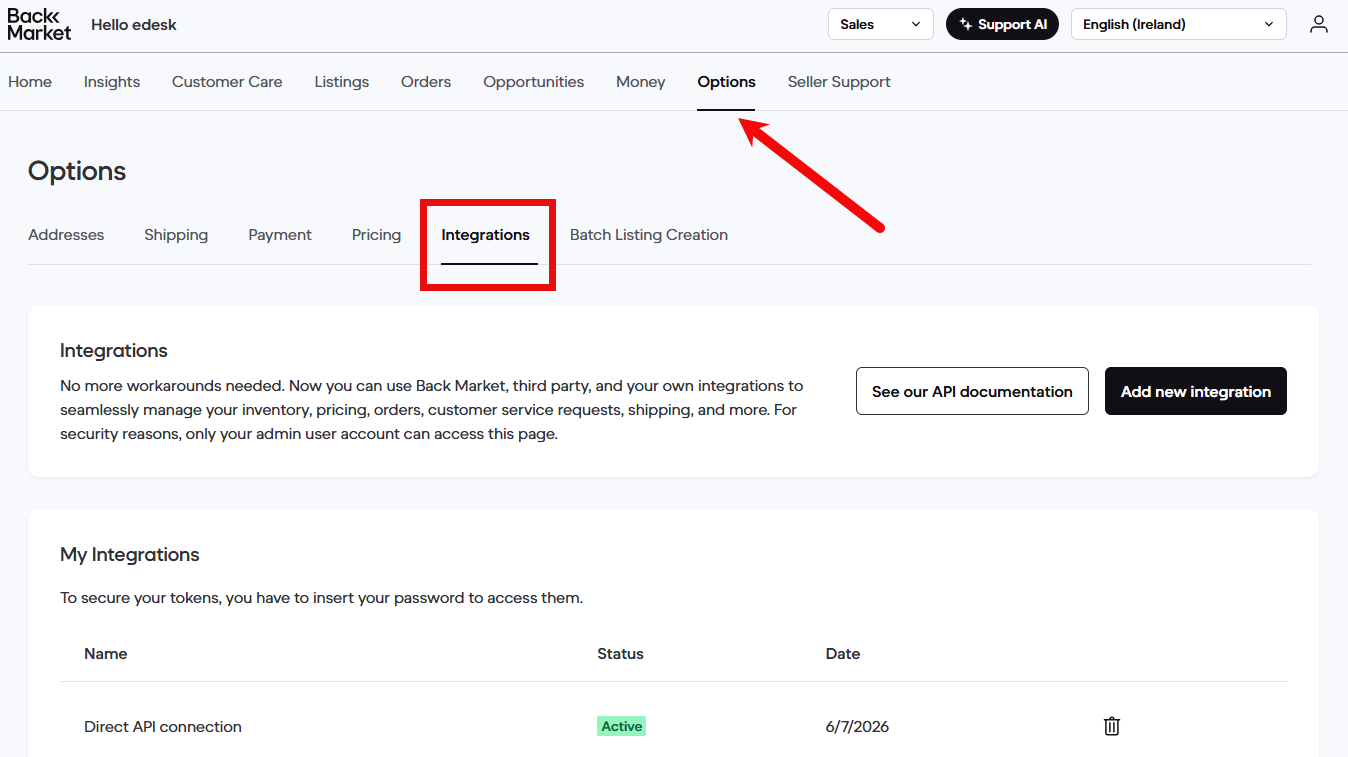
3. If you have previously generated an API Token for a Direct API Integration, then select it and copy the token.
Note: Back Market allows you to have only one direct API connection at a time.
Alternatively, if you have not yet generated an API Token for a Direct API Integration in Back Market, then select Add a new Integration and select Direct API Connection from the menu:
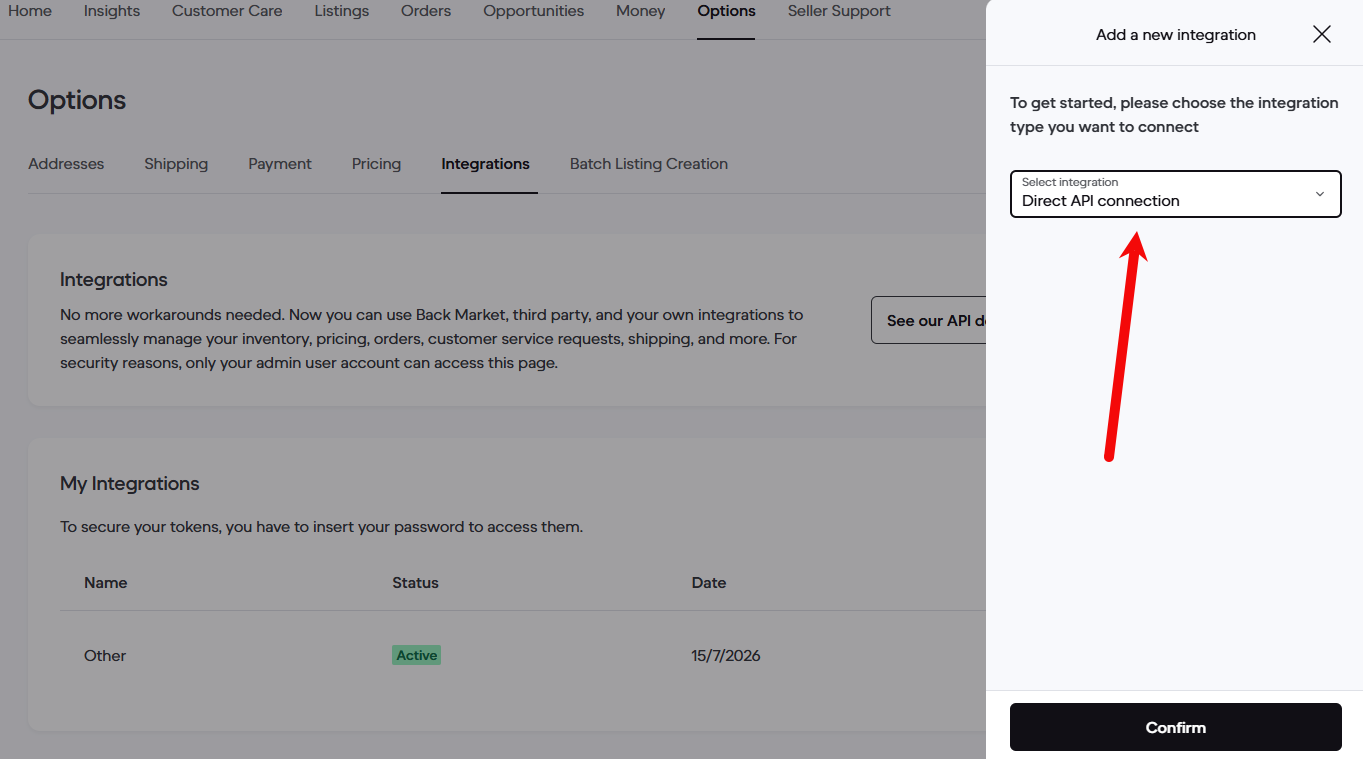
4. Select Confirm.
Back Market generates an API Token for you and displays it on screen.
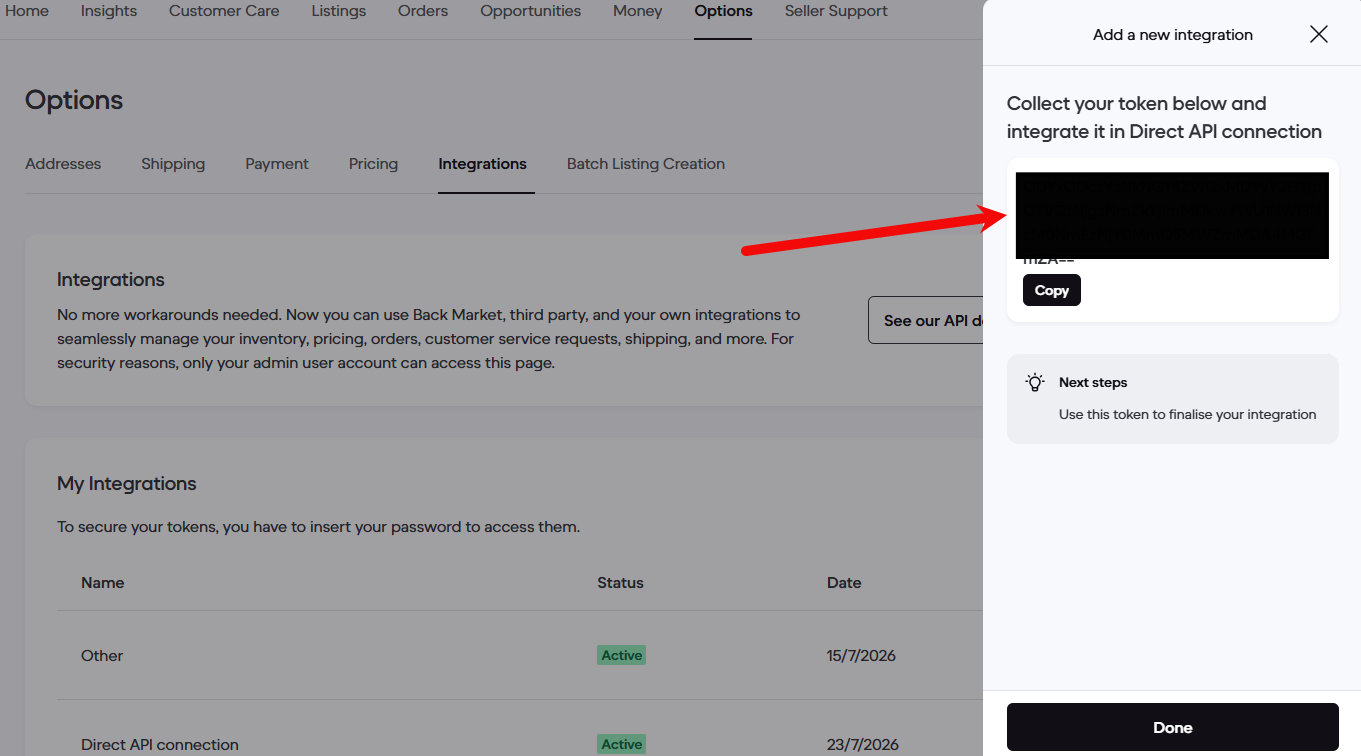
5. Select Copy.
6. Return to your eDesk browser tab, and in the Market field, select the Back Market market that you want to connect to eDesk. Then paste the token into the Token field and select Next:
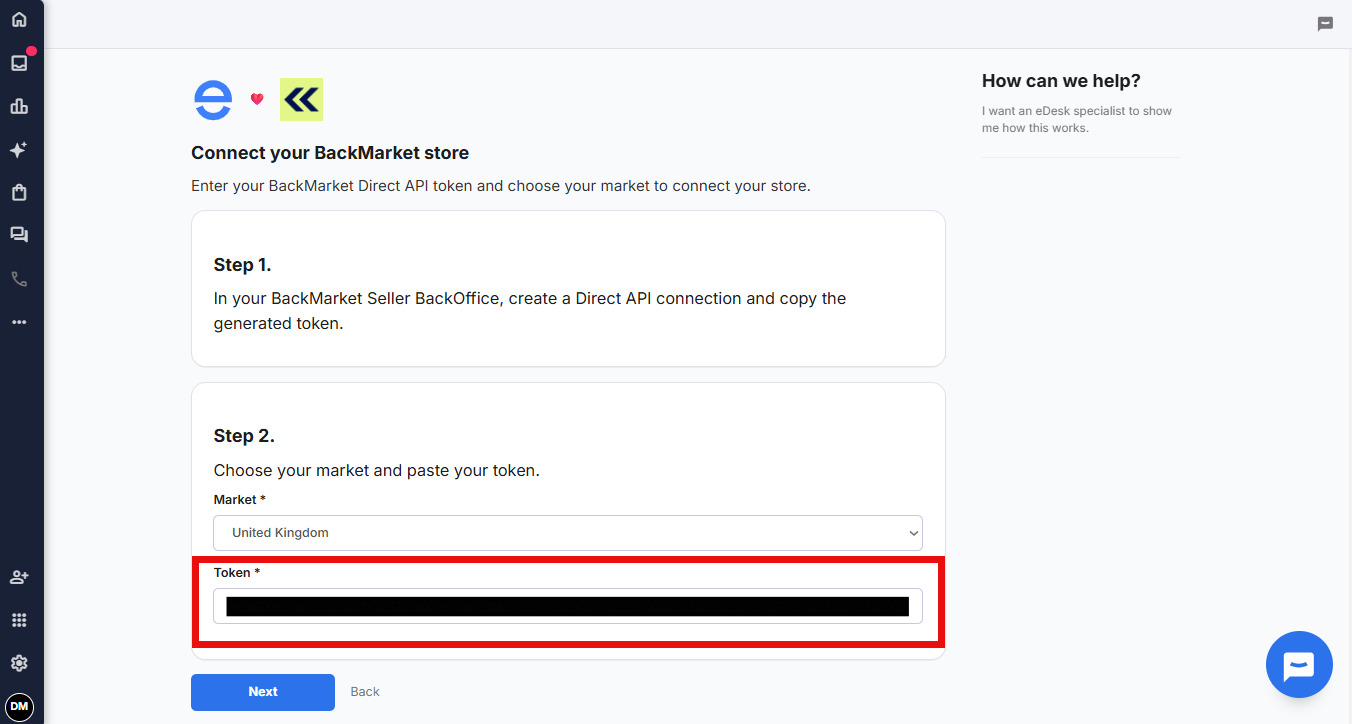
Congratulations, you've now connected your Back Market store to eDesk!
7. If you have multiple Back Market stores and want to connect them all to eDesk, repeat these steps for each store. You can use the same API token.
03 Where do I see data from Back Market in eDesk?
Now that you've successfully connected your Back Market store, we'll continuously import data directly into your eDesk account.
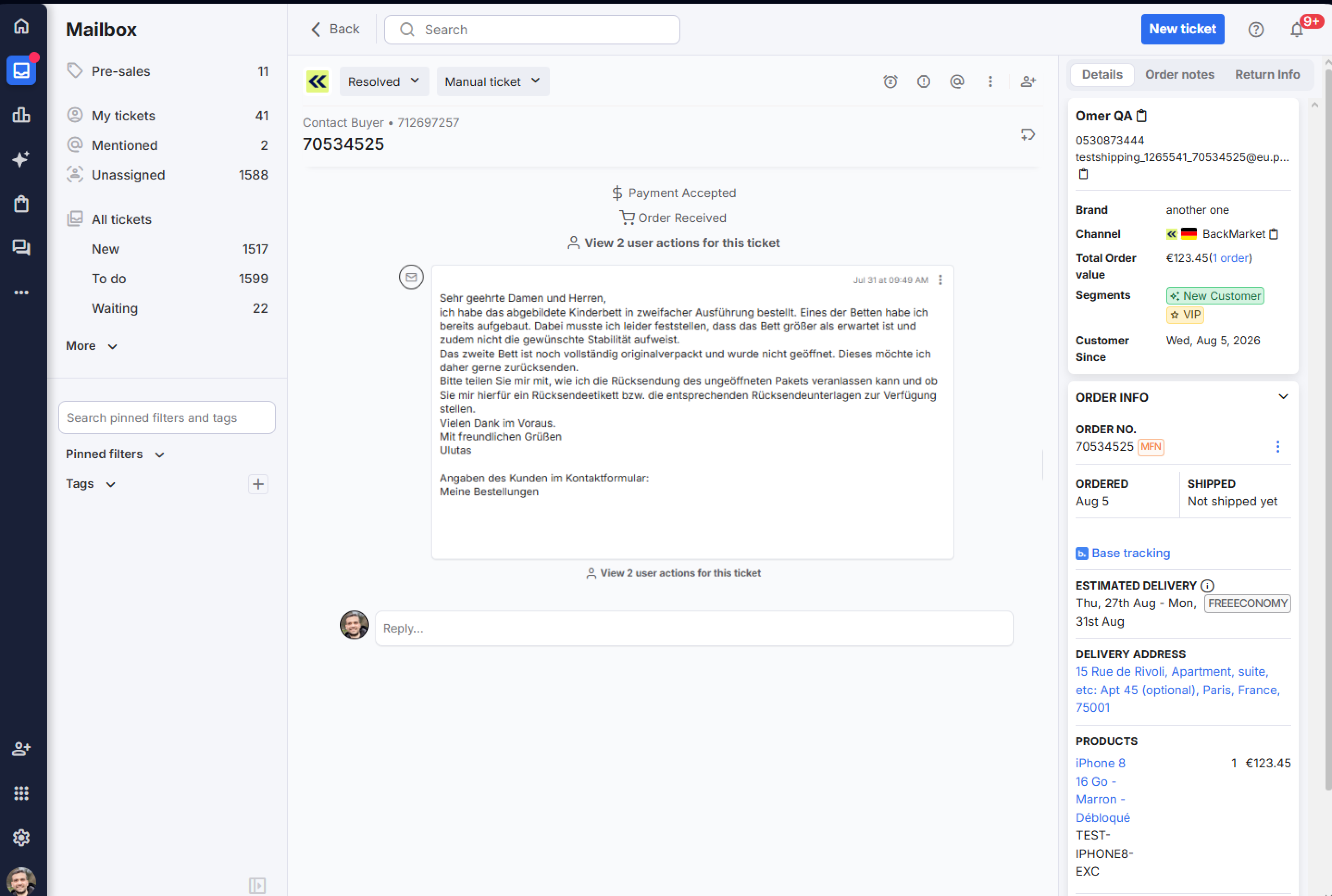
You'll now see messages from your Back Market customers in the Mailbox, and when you open a Back Market ticket, you'll see the Back Market data on the right-hand side:
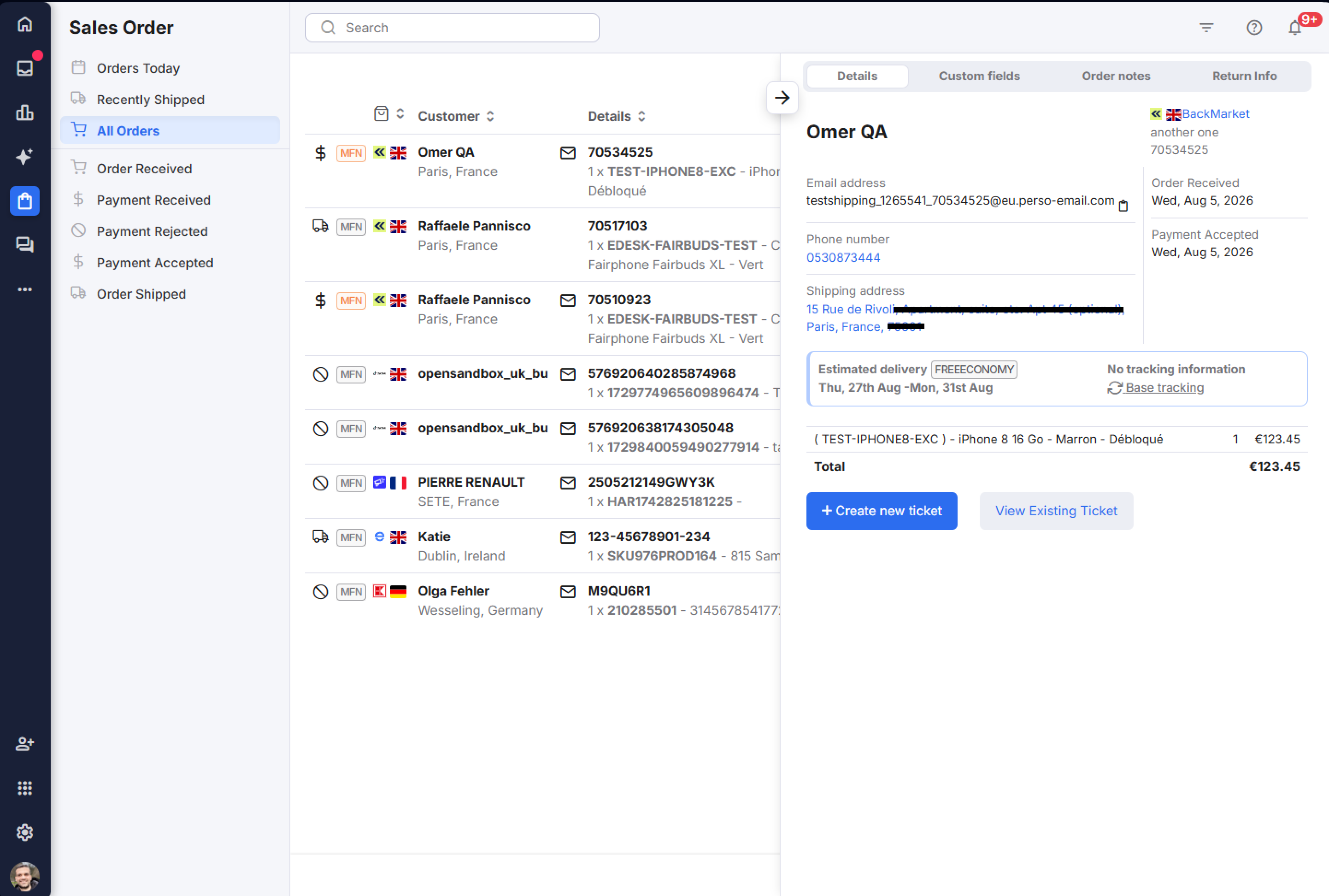
And you also will be able to view all your Back Market orders directly on the Orders page in eDesk:
- Back Market expects customers to confirm their order, which they must do in Back Market.
- Back Market does not allow Agents to contact customers proactively; you can only reply to customer messages.
- You must manage cancellations and refunds through Back Market.
Further Reading
Learn how to connect OTTO with eDesk.
Learn how to connect eBay with eDesk.