This help file explains how to set up an AI Agent to handle tickets in eDesk.
Before you start
- To add an AI Agent, you’ll need an Admin or Team lead account.
- The AI Agent is available to all eDesk customers. See here for billing information.
- Read this help file for an overview of how AI helpers like the AI Agent can help your team deliver great customer care.
01 Overview
Depending on your requirement, you can set up one AI Agent that can handle any type of customer message from any channels - or a set of AI Agents that are each dedicated to certain channels, Procedures, Instructions, Training Content, or Policies.
Many of our clients prefer to run multiple AI Agents because you can run genuinely different agent behaviour across one business. For example:
- "Consumer" AI Agent
A consumer-friendly tone, consumer procedures, stricter guardrails, assigned to storefront channels. - "B2B" AI Agent
A more formal tone, a different set of procedures, assigned to B2B channels.
Note: You can place restrictions on any AI Agent to prevent them from picking up certain messages.
These are the steps you'll take to get your AI Agent helping your customers:
1. Create Procedures.
2. Create Instructions.
3. Create Policies.
4. Create Training Content.
5. Create your AI Agent and give it access to the Channels you want it to help with, and also the Instructions, the Policies, and the Training Content you've created.
6. Give the AI Agent access to Procedures.
7. Enable/disable the Fallback behaviour.
These are each described below.
02 Create your Procedures
Follow the steps in this help file.
03 Create your Instructions
Follow the steps in this help file.04 Create Policies
Follow the steps in this help file.05. Create or provide access to Training Content
Follow the steps in this help file.06 Create your AI Agent
Note: We sometimes refer to the settings for an AI Agent as their Profile.1. Select AI in the main menu to display the AI section in your eDesk. The Getting started page is displayed.
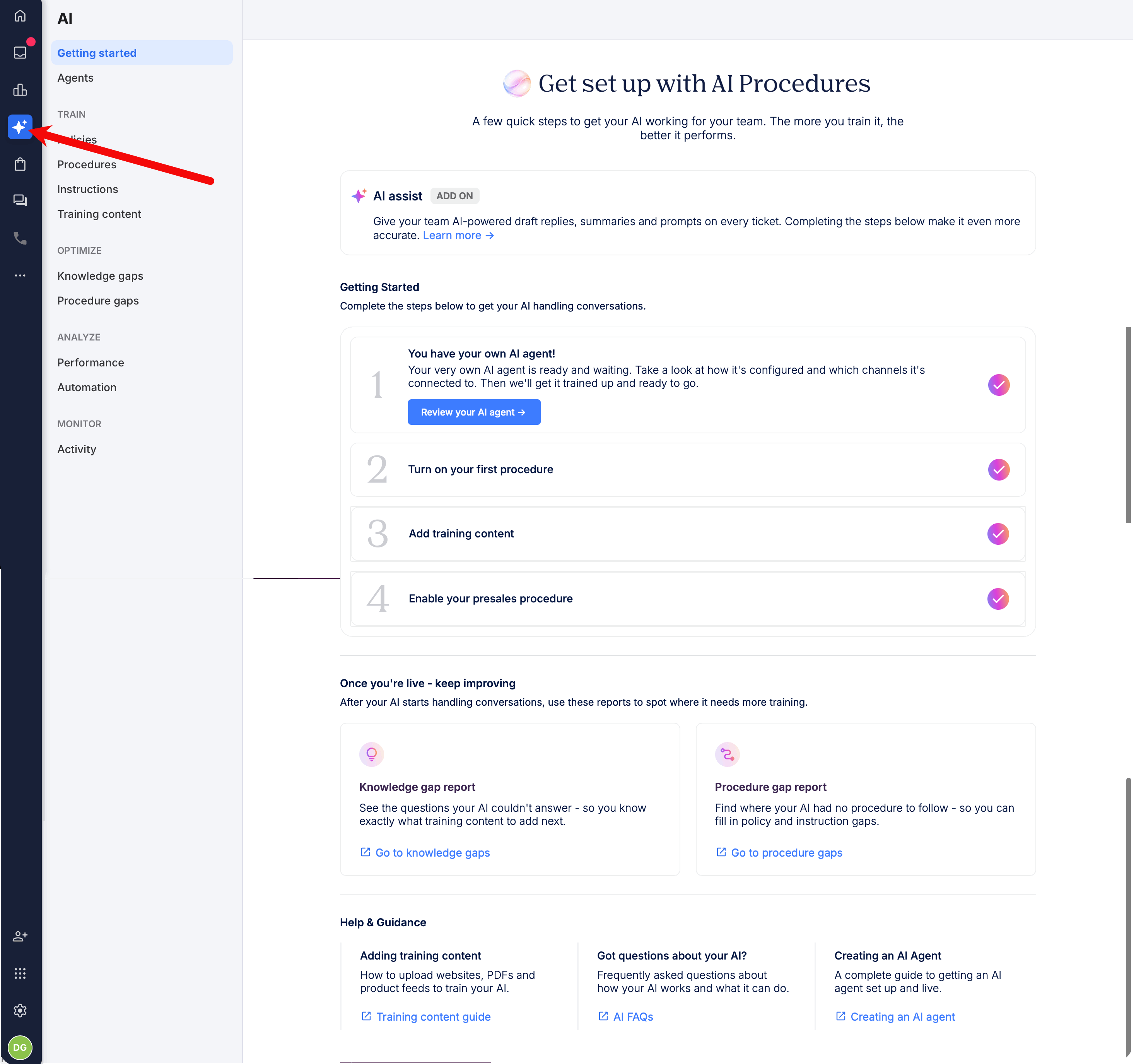
This page offers the following:
- A link to information about AI Assist, which is an Add-on. Read more about AI Assist here.
- A Getting Started section, which outlines the steps needed to set up an AI Agent. It includes a link to the default AI Agent, which is provided for you. If you want to use the default AI Agent (recommended), select Review your AI Agent to inspect and edit the default AI Agent's profile to meet your requirement.
- Links to the optimisation tools that enable you to fine-tune your AI Agent's performance once it has started to work on tickets. These are the Knowledge Gap report (which identifies information that is missing from the Training Content, and prevented this Agent from handling a ticket), and Procedure Gap report (which identifies Procedures that are missing and prevented this Agent from handling a ticket).
- Links to eDesk help files (like this one) that provide useful information about the AI Agent.
Alternatively, select Agents in the main menu.
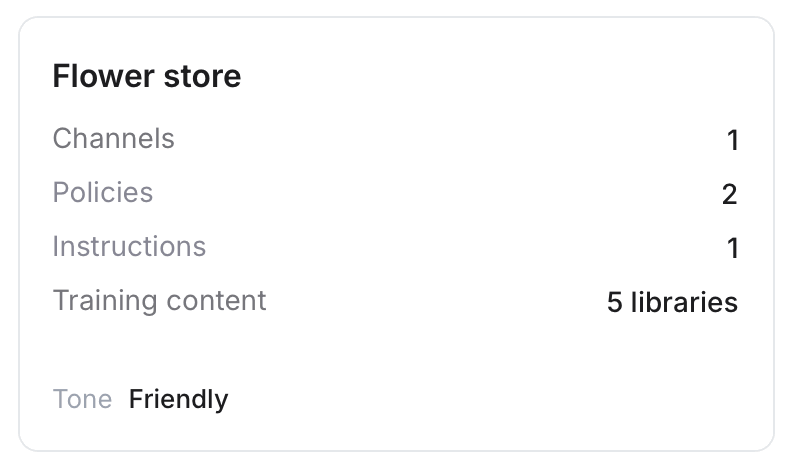
The list of existing Agents is displayed on screen. Each Agent is displayed on a tile, which shows a summary of its settings. The example below shows an AI Agent the an internal name Flower store, it sees tickets from 1 Channel, it uses 2 Policies, 1 set of Instructions, has 5 libraries of Training Content, and a Friendly tone of voice.
3. To edit an existing AI Agent, select the tile, and edit the fields described in the next step.
To create a new AI Agent, select Create AI Agent.
4. The Profile page opens for the AI Agent. This is where you set which channels the Agent will serve, and provide it with the information it needs to help customers.
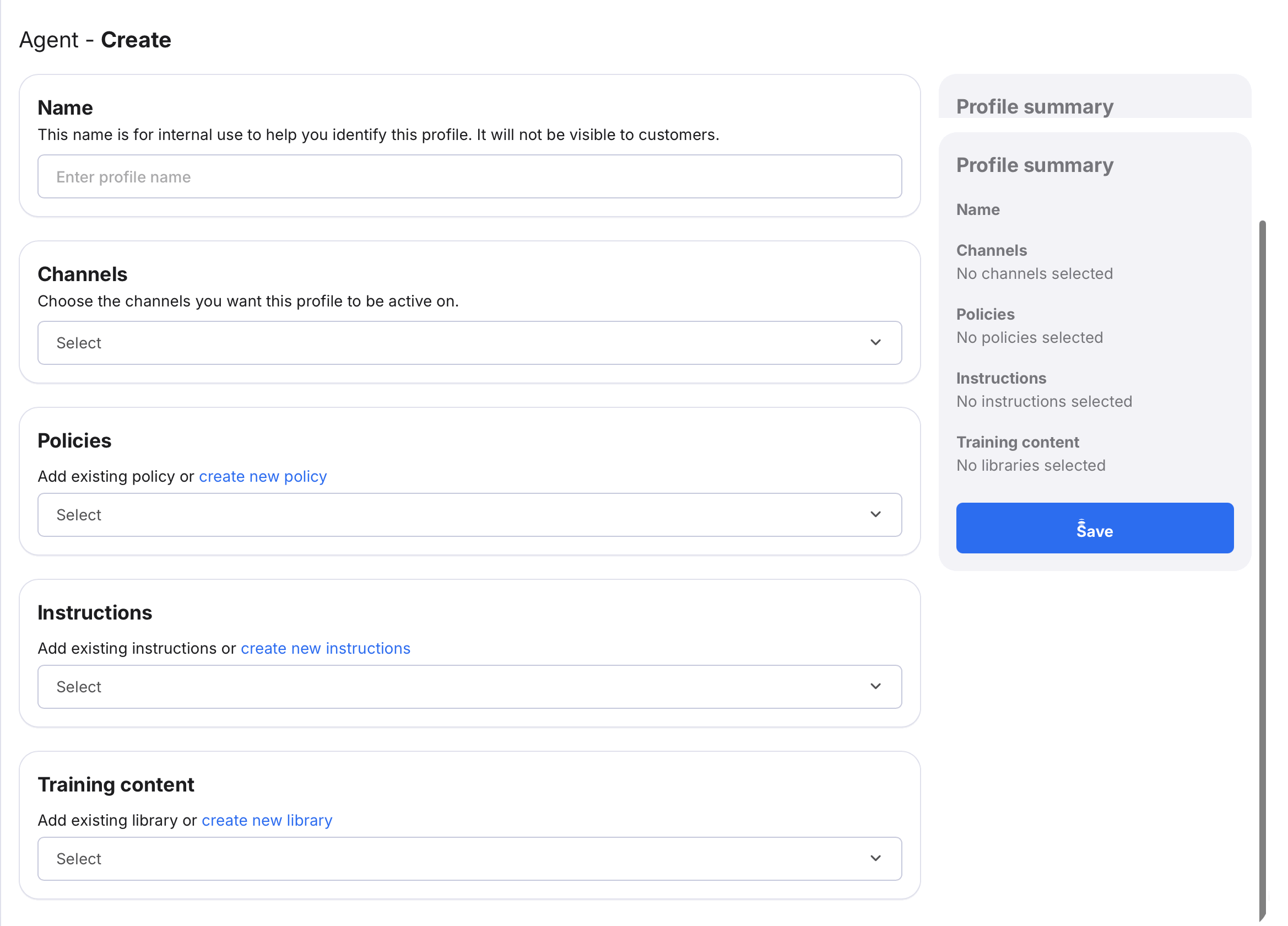 Complete the fields. As you save each section, the summary on the right-hand side updates to show the settings you've chosen. Yoi can
- Name
Mandatory. Enter a name to identify the AI Agent within your account. This name is internal only and will appear in your list of profiles, it is not visible to customers. - Channels
Mandatory. Select at least one channel from the menu. A channel can only be associated with one profile. If a channel is not specified, the AI Agent will not be enabled on that channel. - Policies
Select one or more Policies from the menu. It's not mandatory but if you don't add a Policy, the AI Agent may not have all the information it needs to auto-reply. - Instructions
Select one or more Instructions from the menu. It's not mandatory but if you don't add Instructions, the AI Agent may not have all the information it needs to auto-reply. - Training content
Select a Training Content library from the menu. It's not mandatory but if you don't add Training Content, the AI Agent may not have all the information it needs to auto-reply.
The Settings tab is displayed.
Apply Guardrails and Send Delays
Guardrails tell the AI Agent when it should ignore a ticket, so that a human Agent can reply. When a ticket arrives that trips a guardrail, the AI Agent does nothing. If AI Assist is enabled, it will add a draft reply to the ticket, which your human Agent can review and send if they wish.1. In the Settings tab, tell the AI Agent how to reply to customers by completing the fields as required. All fields are optional. The settings include exclusion rules that allow you to instruct the AI Agent to ignore certain tickets, so that a human agent can handle them instead.
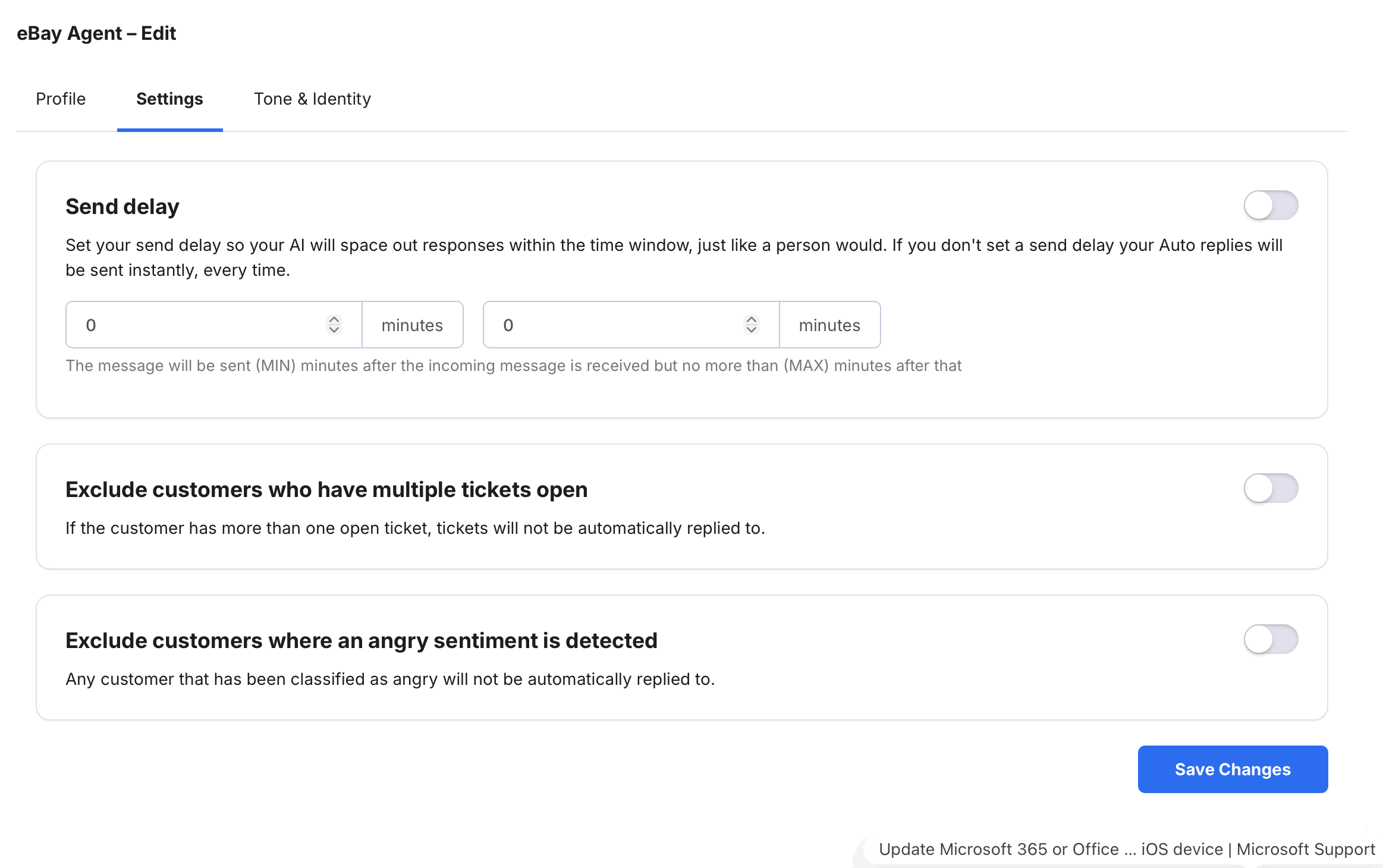
- Send delay
Set a send delay to make AI Agent replies appear more human. If no delay is set and the AI Agent is able to auto-reply, its message will be sent instantly. - Exclude customers who have multiple tickets open
If the customer has more than one open ticket, don't auto-reply. - Exclude customers where angry sentiment is detected
Where the sentiment analysis produces a Negative result, don't auto-reply.
Tell the AI Agent how to appear to customers
1. In the Tone & Identity tab, tell the AI Agent how to appear to customers by completing the fields as required. All fields are optional.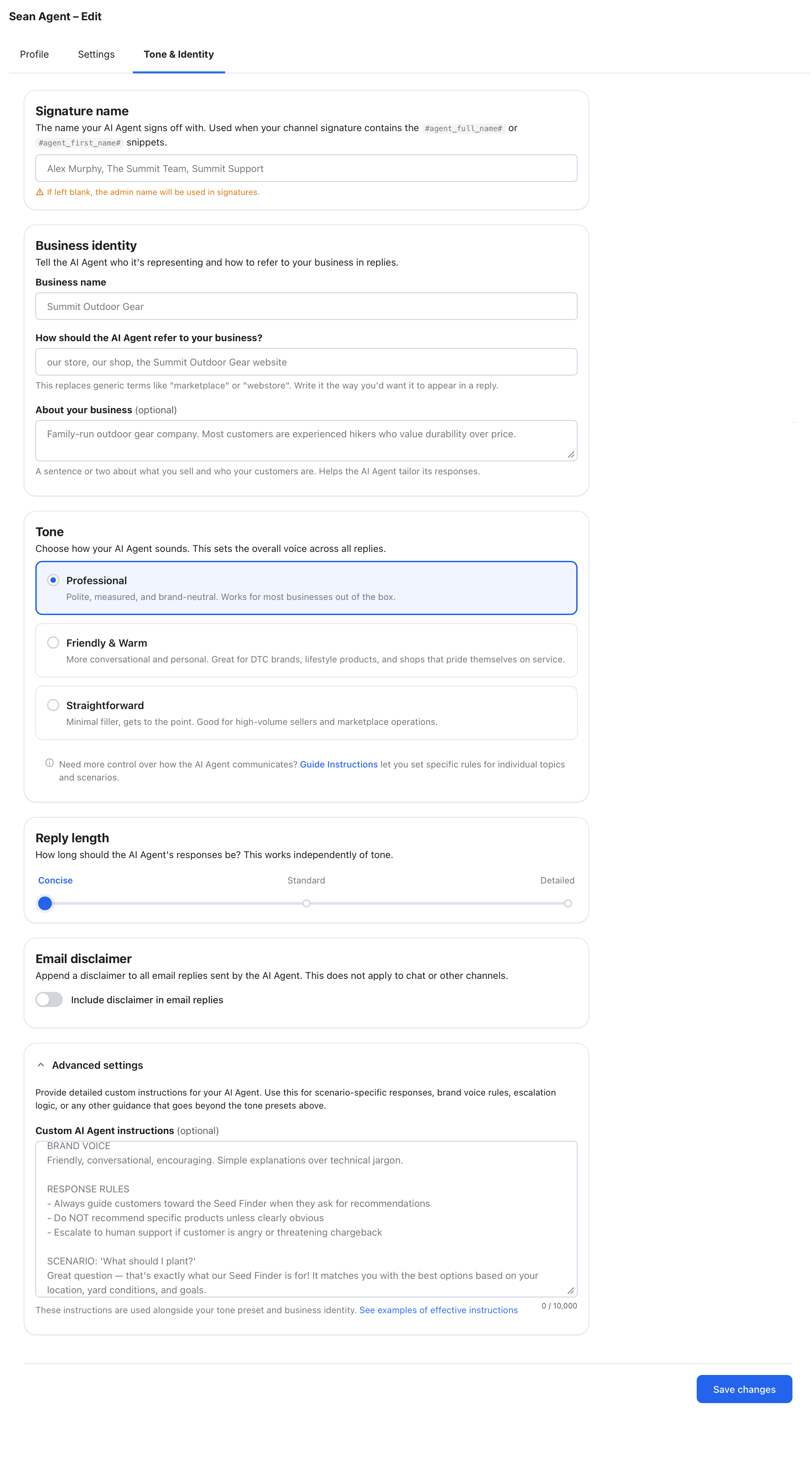
- Signature name
Enter the name the AI Agent will use to sign off autoreplies. This will only appear in replies if your channel signature includes the #agent_full_name# or #agent_first_name# snippet.
Tell the AI Agent how to talk about your business.
- Business name
For example: Joe's Bikes. - How should the AI Agent refer to your business?
For example, our store. - About your business
Summarise what you sell and who your customers are.
Choose the tone that the AI Agent should use.
- Professional
Polite, neutral, and measured. - Friendly & Warm
Conversational and informal. - Straightforward
Focused and factual.
Move the slider to choose how long the AI Agent's replies will be. The scale ranges from Concise through Standard to Detailed.
Email Disclaimer
- Include disclaimer in email replies
The disclaimer says that the reply comes from an AI-powered Agent and is a legal obligation in many regions. Learn more here.
- Custom AI Instructions
Provide detailed custom instructions for your AI Agent. Use this for scenario-specific responses, brand voice rules, escalation logic, or any other guidance that goes beyond the tone presets above. See some examples of good Instructions here.
Congratulations, you have now created a basic AI Agent that is able to use Instructions, Policies, and Training Content to help customers. The next step is an important one, which is to give your AI Agent access to Procedures. Procedures are what empowers your Agent to deliver the highest possible level of care to your customers. Learn about Procedures here.
Important things to note:
- If you do not want the AI Agent to work on a certain channel, simply remove it as a selected channel from the profile.
07 Ensure the Agent has access to Procedures
To enable the AI Agent to auto-reply to your customer messages and execute actions such as Approve Refund, you need to allow it to use the Procedures you created by opening the Procedure settings and adding your Agent. Full instructions are here.
08 Editing, viewing, and deleting AI Agents
To edit (or view) the profile settings of an AI Agent:
1. In the main menu, select the AI icon.
2. Select Agents to show a list of all existing AI Agents.
3. Select the Agent in the list to open the Edit page.
4. Make your changes and select Save.
To delete an AI Agent:
1. In the main menu, select the AI icon.
2. Select Agents to show a list of all existing AI Agents.
3. Select the agent to open the Edit page.
4. In the AI Agent Summary on the right side of the page, select Delete AI Agent.
5. Confirm you want to delete the AI Agent.
The AI Agent is deleted permanently and cannot be restored. Any associated Procedures, Policies, Instructions, Training Content, or Channels are not deleted.
Further reading
To learn all about Procedures, see here.
To learn about eDesk's AI helpers, the AI Agent and AI Assist, see here.